DataSocket Tutorial
Overview
This tutorial gives a basic overview of DataSocket, why it was developed and for what it is currently used. It will also show step-by-step procedure on how to create appropriate URLs for each type of supported protocol.
Table of Contents
DataSocket Overview
DataSocket is an Internet programming technology based on TCP/IP that simplifies data exchange between computers and applications.
DataSocket was developed to help eliminate the complexities of hardware and software integration specifically in test and measurement applications. It was also developed specifically for publishing sharing live data over a network. Previously, there were numerous different types of hardware, software and protocols involved in various applications. This complexity forced a programmer to negotiate between the different protocols to transfer data, which required a great deal of development time and resources.
As a solution to this, National Instruments developed DataSocket. DataSocket allows easy data transfer over many different protocols (DSTP, OPC, LOOKOUT, HTTP, FTP, and local file access). In addition to providing an overlying interface for many protocols, DataSocket also transfers data in a self-describing format that can include strings, scalars, Booleans and waveforms.
Overall, DataSocket gives an easy-to-use, high performance programming interface designed for sharing and publishing live data in measurement and automation applications.
See Also:
Datasocket
Integrating the Internet into Your Measurement System - DataSocket Technical Overview
DSTP (Publisher, Server and Subscriber)
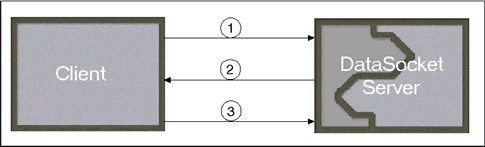
As mentioned previously, there are six main protocols that DataSocket can implement. The first three protocols are useful for live data transfer (DSTP, OPC and LOOKOUT). The first of these protocols which DataSocket can implement is the DataSocket transfer protocol (DSTP). DataSocket communication via this protocol utilizes the DataSocket server. This communication architecture consists of three main parts: a data publisher, a DataSocket server and a DataSocket client.
To understand the role of each part, let us form a hypothetical situation. In this situation, we have a main computer in an Operations Laboratory. This computer has a data acquisition card that is acquiring the data from 32 different acquisition channels connected to some experiment. The professor/lab technician then wants to take this data and distribute it over the network so as to make it easily accessible to multiple users. Normally, this situation would require the computer to acquire the data and then through some other means, initiate communication and negotiate the transfer of that data to the separate clients.
DataSocket simplifies this process by providing simple function calls to transfer data and an easy-to-use server-client architecture to share the data.
The data publisher in this situation would be the main computer acquiring the data through its data acquisition card. This computer would obtain the data and publish it to the DataSocket Server.
The DataSocket Server is an application that could be running on that same test machine or it could reside elsewhere on the network. Regardless of where it was located, the DataSocket Server would open a small amount of memory and allow data to be stored on that server.
Once the data has been transferred to the server, it is easily accessible from any client machine.
The publishing and subscribing of data is all done through simple top-level interfaces of the DataSocket Read and DataSocket Write functions. These functions handle the low-level TCP/IP programming for you, as shown in the following figures.

DataSocket Server
The general URL format for this protocol is dstp://ServerName/Numeric.
- ServerName is the computer where the DataSocket Server is currently running.
- Numeric is an arbitrary name for the memory whereat the published data is located.
There are similar DataSocket Read and DataSocket Write commands in other programming interfaces (VB and LabWindows/CVI).
OPC
The second protocol by which DataSocket can communicate is OPC (OLE for Process Control). This is programmed in exactly the same way as the dstp communication. However, instead of using the DataSocket Server, the user would use an OPC Server.
The appropriate URL format to subscribe to an OPC Server is opc://ServerName/OPCServer/ItemName.
- Again, ServerName is the computer on which the OPC Server is currently running.
- OPC Server is the name of the OPC Server (eg. National Instruments.OPCDemo).
- ItemName is the OPC Item to which you are subscribing.
Many experienced OPC programmers also want to include certain configuration settings in their subscriptions. Therefore, National Instruments has made it possible to configure your subscription including the OPC Server Deadband and the OPC Server Update Rate. There is a simple way to include this in your URL: opc:\\ServerName\OPCServer\ItemName?updaterate=100&deadband=0.7.
This is similar to the previous URL except for the addition of the update rate and the deadband configuration. Again, similar commands are available in other programming languages.
LOOKOUT
A third "live-data transfer" protocol is the "Lookout" protocol. This protocol originated with the National Instruments Lookout. The Lookout protocol is basically a proprietary subset of TCP/IP. This protocol is used for Lookout, the LabVIEW Datalogging and Supervisory Control Module and FieldPoint. The URL format varies for each of these applications. Thus, each will be presented individually.
Lookout
The general format for a DataSocket connection to Lookout is lookout:\\ServerName\Process\Object.
- ServerName is the computer on which the Lookout Services are running (Citadel, Classified and Time Services).
- Process is the name of the Lookout process.
- Object is the Lookout object and respective datamember that is being monitored.
An example of a Lookout URL is lookout:\\localhost\Process1\Modbus1.40001.
The LabVIEW Datalogging and Supervisory Control Module ( DSC Module)
The DSC Module also uses the Lookout communication protocol. The URL that DataSocket uses to communicate with it is lookout://ServerName/Process/Tag.
- ServerName is the computer on which the Lookout services and Tag Engine are running.
- Process is the process name. This is usually "LabVIEW" for the DSC Module.
- Tag is the name of that tag that should have been configured in the Tag Configuration Editor
An example of this URL is lookout://localhost/LabVIEW/Analog Tag.
FieldPoint
FieldPoint also uses the Lookout protocol. However, instead of connecting to the local process, the URL for this connection actually connects directly to the FieldPoint Network Module (FP-160x, FP-20xx): lookout:\\IPAddress\FP\Module\Channel.
- IPAddress is the address of the FieldPoint Network Module.
- FP is the Fieldpoint Process name. The default for this is "FP".
- Module is the name of the Fieldpoint module (TC-120, AI-110, RLY-422, etc...)
- Channel is the name of the channel to which you are subscribing.
The URL format is lookout:\\10.0.34.104\FP\1RTD\00.
More information about FieldPoint URLs can be found in the Tutorial linked below. Also note that the the LOOKOUT protocol has two aliases - FIELDPOINT and LOGOS. In any of the lookout URLs listed above, the term "fieldpoint" or "logos" could replace lookout to achieve identical functionality.
See Also:
Introduction to Using DataSocket Commands to Communicate with FieldPoint Ethernet Network Modules
HTTP
In addition to the live data transfer protocols, DataSocket also supports some common protocols, including HTTP, FTP, and File access.
The HTTP protocol is the basis for all web-based communication. Using DataSocket, a user can retrieve the entire source code from any webpage simply by using a standard URL, as shown in the following figure.
The URL format is http://website.
- website is the actual URL of a specific page on the internet.
An example of a URL that a user could use with the DataSocket Read VI is http://www.ni.com.
See Also:
How Do I Download a Text File from a Password Protected URL Using DataSocket Read?
FTP
In addition to retrieving simple source code from a web URL, a user can also use the DataSocket functions to retrieve files from an FTP site. A user can retrieve either binary files or text files. To retrieve a binary file, use the format ftp://server/directory/file.
- server is the ftp server from which you are retrieving the file.
- directory is the path to the directory containing the file.
- file is the name of the file being retrieved.
Refer to the following figure for an example of a DataSocket connection to ftp://ftp.ni.com/incoming/blip.wav.
If the user wants to retrieve a text file, the URL must include [text] at the end of the URL, for example: as shown in the example ftp://ftp.ni.com/incoming/readme.txt[text].
To retrieve files from a password protected server, enter the URL ftp://user:password@host/item. For example, enter ftp://tsmith:123456@ftp.ni.com/incoming/readme.txt[text].
Refer to the following links for more information about connecting to password-protected servers.
See Also:
How Do I Download a Text File from a Password Protected URL Using DataSocket Read?
How Can I Retrieve Data from FTP Servers That Require a Username and Password for Login?
Files
DataSocket also supports reading simple binary or text files. The URL format for this retrieval is file:c:\mydata\ping.wav, file:\\machine\mydata\ping.wav, file:\\machine\mydata\readme.txt[text].
- machine is the computer name or IP address.
mydata is the directory where the file is located.
See Also:
How Do I Download a Text File from a Password Protected URL Using DataSocket Read?
Front Panel DataSocket Connections
One method of obtaining URLs (or not having to worry about URLs) is to use front panel DataSocket connections. This is done by simply placing a control or indicator on the front panel, right-clicking the control or indicator, and selecting DataSocket Connection, as shown in the following figure.
The user then must select the connection type (publish and/or subscribe). After selecting the connection type, the user can either type in the DataSocket URL or browse for it by selecting Browse»Measurement Data.
At this point, the user can browse for the item to which he/she wants to connect.

Browse to DataSocket URL
If the user does not know the URL, then it sometimes can be found by browsing. (Note: This is only true for DataSocket items on a DataSocket Server, items on an OPC Server that supports browsing, and Lookout processes).
After connecting to the item, a small rectangle will appear to the upper right of the control or indicator. As the VI is being executed, this rectangle will be either red or green depending on whether it can establish a valid connection with the data item. (Red = bad connection, Green = valid connection).
Note: When using the front panel DataSocket connection, there will be no visible source code created in the block diagram.
Conclusion
DataSocket is an extremely powerful way to transfer data and to create easy connections between computers. The DataSocket Read and DataSocket Write VIs support various protocols including DSTP, OPC, Lookout, HTTP, FTP and File retrieval.
Through the use of front panel Datasocket connections, a user can quickly and easily establish a connection to a data item. This capability will improve the networking capabilities of many measurement and automation applications.
For more information on these topics, please visit further links at our website (www.ni.com).
Reader Comments | Submit a comment »
Legal
This tutorial (this "tutorial") was developed by National Instruments ("NI"). Although technical support of this tutorial may be made available by National Instruments, the content in this tutorial may not be completely tested and verified, and NI does not guarantee its quality in any way or that NI will continue to support this content with each new revision of related products and drivers. THIS TUTORIAL IS PROVIDED "AS IS" WITHOUT WARRANTY OF ANY KIND AND SUBJECT TO CERTAIN RESTRICTIONS AS MORE SPECIFICALLY SET FORTH IN NI.COM'S TERMS OF USE (http://ni.com/legal/termsofuse/unitedstates/us/).