Deploying and Launching a Real-Time Application
Overview
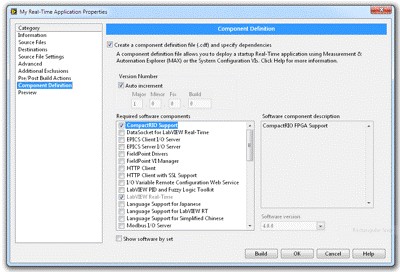
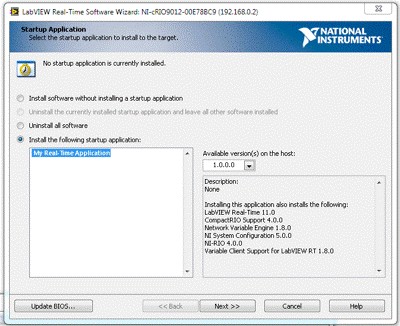
Once a LabVIEW Real-Time (RT) application has been developed, it is common to want to deploy this application so that it becomes the primary application for this specific RT controller. This document will go over ways to deploy an application and launch the deployed application on the RT controller for LabVIEW 6.1 and earlier. The documentation to create a LabVIEW RT application in LabVIEW 8.6 can be found in the LabVIEW Help. The title of the article that addresses this issue in detail is "Building a Stand-Alone Real-Time Application (RT Module)". It can be found within the LabVIEW Help under Real-Time Module » Real-Time Module How-To » Deploying Deterministic Applications (RT Module) » Building a Stand-Alone Real-Time Application (RT).
Table of Contents
Creating the Executable
The LabVIEW RT Application Builder is used to create the executable for the RT controller. Follow the steps below to create an executable out of your LabVIEW RT application. Please note that the Application Builder is installed with the Professional Development System of LabVIEW, or if purchased and installed as a separate add-on component to LabVIEW.
- Save the VI that you would like to create an executable from.
- Close the VI.
- Select your execution target. For ease of embedding the executable, selecting the RT controller as the execution target is recommended.
- If using LabVIEW RT 6.1 or earlier, create a new empty VI. This is simply so we can see the LabVIEW menu bar.
- Select Tools » Build Application or Shared Library (DLL) to open the Build Application or Shared Library (DLL) dialog box.
- The appearance of this dialog differs depending on execution target. See the appropriate sub-option for your execution target selection.
- While targeted to your RT controller, the Application Builder disables the Build target, Target file name, Destination directory, and Support file directory options, as shown in Figure 1. The exception to this is the 7030-based PCI / PXI plug-in boards. Since the 7030-based devices have no permanent storage media, your executable will be created on the host computer, as outlined in the next section, even when targeted to the 7030.

[+] Enlarge Image
Figure 1. Build Application or Shared Library (DLL) Dialog Box (RT)
The Application Builder determines the Target file name, Destination directory, and Support file directory from the Application Path setting in the RT controller's Options dialog box, available by selecting Tools » Network: x.x.x.x Options and selecting RT Target: Miscellaneous as shown in Figure 4. If you select the Small application with external file for sub-VIs option in the Build Options section, you cannot change the LLB for other files path because this is also determined by this same Application Path setting.
The Application Settings tab in LabVIEW RT 7.0 and later has special behavior while targeted to the RT controller. The tab has only one option, called Set Target to Launch Application at Boot-up, as shown in Figure 2. With this option enabled (which is the default setting), the Application Builder will configure the RT controller to launch this application when the controller is powered on. If you want to build and embed the executable but not launch it at boot-up, be sure to clear the check box for this option before continuing. Note that launching an executable at boot-up is still possible with LabVIEW RT 6.1 and earlier, but setting this option must be done in a different place as described below.

[+] Enlarge Image
Figure 2. Application Builder Application Settings Tab (RT)
The Installer Settings tab is not visible when targeted to the RT controller because the settings on this page do not apply to applications embedded on an RT controller.
- While targeted to the host PC, Application Builder has leaves the Target file name, Destination directory, and Support file directory available as options as shown in Figure 3.

[+] Enlarge Image
Figure 3. Build Application or Shared Library (DLL) Dialog Box (HOST)
When building an RT executable in this mode and using LabVIEW RT 6.1 or earlier, be sure to name set the Target file name to be named in the 8.3 naming format if you intend to embed it on your RT controller. See the link below for more information on the 8.3 naming format. Also take note of the destination directory so you know where on your host computer the executable will be stored once built.
The Application Settings tab is available while targeted to the host. Two of the options on this page are specific to an executable that will be run from the host computer, but targeted to an RT controller. If you select the Show LabVIEW Real-Time target selection dialog when launched option, your executable will automatically prompt for the RT controller to target before running. If you select the Quit LabVIEW Real-Time host application after downloading option, after the executable is downloaded and run on the RT controller, it will close its interface on the host computer but continue to run on the RT controller.
- While targeted to your RT controller, the Application Builder disables the Build target, Target file name, Destination directory, and Support file directory options, as shown in Figure 1. The exception to this is the 7030-based PCI / PXI plug-in boards. Since the 7030-based devices have no permanent storage media, your executable will be created on the host computer, as outlined in the next section, even when targeted to the 7030.
- Click the Source Files tab.
- Click the Add Top-Level VI button to browse to and select the main VI of your RT application. In many cases, this is the only source file required. For more complex applications, continue to add additional source files until complete.
Note: Do not add the file serpdrv to your application in the Source Files tab. The serial port driver for LabVIEW RT is installed on the RT controller with LabVIEW RT. Manually adding serpdrv to your application adds the Windows driver, which is incompatible with the RT Operating System.
- Click the Build button.
This will create an executable from your VI. In the case of building while targeted to the RT controller, the build process automatically embeds the application to the proper location on the RT controller as well. Furthermore, if you used the Set Target to Launch Application at Boot-up option when building, you are done at this point. The executable has been built, is embedded on the RT controller, and will start next time the RT controller is rebooted. If you did not use the Set Target to Launch Application at Boot-up option, you can skip ahead to Launching the Executable. If you built the executable while targeted to the host and you want to embed the executable, continue with the next section.
See Also:
Application Builder Troubleshooting Wizard
KnowledgeBase 27FBHFKN: Information on the 8.3 Naming Format on RT Controllers
Embedding the Executable
This step has been done automatically if LabVIEW RT was targeted to your RT controller when the executable was built. If you were building the executable on the host computer, you must follow these additional steps if you want to embed your executable on the RT controller. Also note that the following steps are not possible when using a 7030-based RT controller, since it does not have any form of permanent storage or an FTP server.
- Find the newly created executable on your host computer's hard drive in the location Application Builder listed as the Destination directory.
- If using LabVIEW RT 6.1 or earlier, verify that the executable file name, as well as the names any files in the data subdirectory, conform to the 8.3 file naming format. If they do not, you may need to rename these files, or go back to the Application Builder and re-build the executable after renaming the original source files. See the link below for more information on the 8.3 naming format.
- Use an FTP utility to transfer the executable file to the c:\ni-rt\startup folder on the RT controller. Create a folder on the RT controller called data within the c:\ni-rt\startup folder. Transfer any files from the data folder on the host computer to the one you just created on the RT controller.
Depending on your familiarity with FTP, there can be significantly more work involved with these steps. This is why selecting the RT controller as the execution target before building the executable is recommended.
See Also:
KnowledgeBase 27FBHFKN: Information on the 8.3 Naming Format on RT Controllers
KnowledgeBase 2PM9CMEW: How Do I Transfer Files With FTP?
Launching the Executable
There are a few options when launching an application for execution on the RT controller.
- The executable has been embedded on the RT controller. Choose one of the sub-options below.
- Launching the executable when the RT controller boots up
- Switch execution target to the RT controller.
- Select Tools » Network: x.x.x.x Options.
- Select RT Target: Miscellaneous from the pull-down menu.

[+] Enlarge Image
Figure 4. RT Target: Miscellaneous Dialog Box
- Select Launch Application at Boot-up as shown in Figure 4.
- Click the OK button. The application will now launch automatically once the RT controller is rebooted.
Note: If you need to configure the executable to launch at boot and do not have access to the LabVIEW Development System on a Windows machine, see the link below which discusses ways to do this manually or programmatically.
- Switch execution target to the RT controller.
- Launching the executable manually from the host computer via VI Server
The basic steps to launch an embedded executable from the host computer through VI Server are as follows:
- Open a LabVIEW application reference to the RT controller.
- Open a VI reference to the top-level VI in the executable. In the case of a top-level VI called RT Engine.vi, the path for the VI reference to open for the default executable location would be c:\ni-rt\startup\startup.exe\rt engine.vi.
- Use an Invoke Node or a Call By Reference Node to Run the remote VI.
- Close the VI reference, then the LabVIEW application reference. If an Invoke Node was used in the previous step, you must be careful about when you close the VI reference. See notes below.
A good example of this ships with LabVIEW RT 7.0. The example is called VI Server Manager Application.vi, and in specific, it has a sub-VI called Run Embedded Manager.vi. If you run the VI with the Invoke Node and wire a FALSE to the Wait Until Done parameter, you must take careful note about how LabVIEW handles VI execution with respect to VI references and when they get closed. See the link below for more information about this. When using VI Server functions, it is also important to ensure that VI Server security permissions are set appropriately, or errors may occur. See the link below for more information.
- Open a LabVIEW application reference to the RT controller.
Note: Since it is not possible to embed the executable on a 7030-based device, it is also not possible to configure an executable to launch immediately when the 7030 device is powered on. See the command-line options section for more information.
- Launching the executable when the RT controller boots up
- The executable resides on the host computer. Choose one of the sub-options below.
- Running the executable directly
- If you built the application with the option to Show LabVIEW Real-Time target selection dialog when launched, simply double-click the executable. If you did not build with this option, you will need to use command-line options to target the RT controller as explained below.
- On the Please select target platform dialog box, select your RT controller from the pull-down menu. If using an RT controller on the network, enter its IP address. Press OK. Your executable will download and run on the RT controller.
- If you built with the option to Quit LabVIEW Real-Time host application after downloading, you should be done. If not, you may want to use File » Exit without closing RT Engine VIs. This will close the executable's user interface on the Windows machine, but leave the code running on the RT controller.
- If you built the application with the option to Show LabVIEW Real-Time target selection dialog when launched, simply double-click the executable. If you did not build with this option, you will need to use command-line options to target the RT controller as explained below.
- Using command-line options
LabVIEW RT executables have some useful command-line options listed below.
- -target <IP Address>
- This option explicitly specifies an RT controller to use as the execution target. If this option is used, the Show LabVIEW Real-Time target selection dialog when launched executable setting is ignored. When connecting to an RT controller on the network, simply use its IP address as the parameter. The IP address of a 7030-based device is DAQ::X where X is the NI-DAQ device number of the 7030 device. The IP address of a 7041-based device is RT::Y where Y is the embedded RT device number assigned in the Measurement and Automation Explorer. An IP address of host can be used to explicitly specify for the executable to run on the host computer.
- -quithost
- This option controls whether or not the executable closes its front panel on the host computer once it has been downloaded and is running on the RT controller. Using this option is identical to building the application with the Quit LabVIEW Real-Time host application after downloading setting.
- -reset
- This option applies only to the 70xx-based RT controllers. The 7030 device must be reset once after it is powered on. If you run the executable targeted to a 7030 without using this option, it will still go through the reset procedure if it has not been reset since last time it was powered on. If it has been reset once, running an executable targeted to 7030 without using this option will no longer reset the device. If you want to force the executable to reset the 7030 device regardless of its previous state, use this option. This option will also work on a 7041-based device, but is not required after power cycle like it is on the 7030-based devices.
Example:
You have a program called rt_app.exe. You have a network-based RT controller with IP address 10.0.0.1, a 7030-based device with IP address DAQ::1, and a 7041-based device with IP address RT::0.
- rt_app.exe -target 10.0.0.1 -quithost
- This launches rt_app.exe with execution target set to the RT controller located at 10.0.0.1. It will download and run the application on this target, and then close the user interface of the application but leave it running on the RT controller.
- rt_app.exe -target RT::0 -reset
- This forces a reset on the 7041-based device located at RT::0, then launches rt_app.exe with execution target set to RT::0. It will download and run the application on the RT controller, and the front panel of the application will remain open on the host for user interaction.
- rt_app.exe -target DAQ::1 -quithost
- This launches rt_app.exe with execution target set to the 7030-based device located at DAQ::1. It will check to see if the 7030 needs to be reset and perform a reset only if necessary, then download and run the application on this target, and finally close the user interface of the application but leave it running on the RT controller.
DOS batch files can be created to launch multiple executables in a single step. Simply create a text file with the above command lines for your target, then save this file with a BAT file extension. See the document linked below for more information on creating batch files.
To launch one of these executables with command-line options via a Windows shortcut, simply right-click in the folder where you want to create the shortcut and select New » Shortcut. Then enter a line similar to the command line examples above on the shortcut's target field. These shortcuts can then simply be double-clicked to start that executable with the specified command-line options. A shortcut can also be placed in the Start » Programs » Startup folder to have this program launch when the Windows host computer boots up. - -target <IP Address>
- Running the executable directly
See Also:
KnowledgeBase 2I3MCAM5: Can I Programmatically Change the "Launch Application at Boot-Up" Option on a Networked RT Series Controller
KnowledgeBase 2C7C4IEW: Why is the Run VI Method Not Working When Wait Until Done is False?
KnowledgeBase 2IRFCUKN: Why Do I Get Error 66 or Error 1032 With LabVIEW Real-Time Example Programs?
KnowledgeBase 2WCDS3DI: Creating a Batch File
Other Options
To create a Windows shortcut out of any of the command-line examples below, follow these steps:
- In Windows Explorer, browse into the folder in which LabVIEW is installed. By default this is C:\Program Files\National Instruments\LabVIEW 7.0 for LabVIEW RT 7.0.
- Right-click the LabVIEW.exe file and select Create Shortcut.
- Right-click the newly created shortcut and select Properties.
- On the Shortcut tab, you should see a Target text box. Enter additional text after the LabVIEW executable path as suggested in the examples below.
The command line options and VI server have some other useful purposes. These will be discussed below. Some of the items below will use command-line examples that assume that LabVIEW RT 7.0 is installed in the default location, and an RT controller is located at the IP address 10.0.0.1. The examples will need to be modified slightly for your particular situation.
- Launching LabVIEW targeted to the RT controller
By default, the LabVIEW RT Development System will be targeted to LabVIEW for Windows when launched. If you would prefer LabVIEW RT to launch targeted to your RT controller, you can do this with the -target command-line option described above. The following is an example:
"C:\Program Files\National Instruments\LabVIEW 7.0\LabVIEW.exe" -target 10.0.0.1
Note: If an application is already running on the RT controller when this method is used, LabVIEW RT on the host will automatically attempt to open the front panel of the top-level VI(s). These VI(s) must reside on the locally on the host in the same directory that they were downloaded from, and be unchanged from the time of their download. If not, an error message screen will appear asking the user to find the matching VI(s). If a LabVIEW executable is running on the target, then this screen automatically appears. To avoid this, copy the executable that is running on the RT controller to the same directory structure on the host. For example, create a folder on the host computer called c:\ni-rt\startup and use FTP to transfer the startup.exe from the RT controller to this folder.
- Launching VIs residing on the host PC for execution on the RT controller
Like launching LabVIEW targetted to the RT controller, the command-line options can be used to launch a VI targetted to the RT controller as well. Optionally, you can launch the VI without a user interface by adding the -quithost option described above. The following is an example:
"C:\Program Files\National Instruments\LabVIEW 7.0\LabVIEW.exe" -target 10.0.0.1 "C:\My Documents\test.vi"
You can also download multiple VIs in a single command line. If one of these VIs is within an LLB, this is also possible. The following is an example of this, including the -quithost option to close the user interface on the host.:
"C:\Program Files\National Instruments\LabVIEW 7.0\LabVIEW.exe" -target 10.0.0.1 "C:\My Documents\test.vi" "C:\My Documents\app.llb\test2.vi" -quithost
To configure these VIs to run automatically after they are downloaded, complete the following steps:
- Open the VI and select File » VI Properties.
- Select Execution from the pull-down menu and place a check mark in the Run when opened check box.
- Press OK and then save the VI.
This is commonly used with the -quithost option. Launching the VIs this way with the -quithost option will download and run the VIs without a user interface connection to the RT controller.
- Open the VI and select File » VI Properties.
- Launching VIs residing on the RT controller through VI server
It is possible to place a VI on the RT controller, and use LabVIEW on the host computer to start its execution. This is done as follows:
- Open a LabVIEW application reference to the RT controller.
- Open a VI reference to the VI on the RT controller. Use the full path for the VI when opening the VI reference, for example, c:\ni-rt\temp\testapp.vi.
- Use an Invoke Node or a Call By Reference Node to Run the remote VI.
- Close the VI reference, then the LabVIEW application reference. If an Invoke Node was used in the previous step, you must be careful about when you close the VI reference. See notes below.
In addition to the problems that can be encountered when using this method to run an executable (see the first link below), there is a whole host of additional issues that can be encountered because this is now a VI instead of an executable (see the second link below). For these reasons, it is highly recommended to use an executable when running code that resides on the RT controller.
- Open a LabVIEW application reference to the RT controller.
See Also:
KnowledgeBase 2C7C4IEW: Why is the Run VI Method Not Working When Wait Until Done is False?
KnowledgeBase 2BQATHKN: Bad Execution State and Error 1003 when Using VI Server to Start VIs Stored on an RT Series PXI Controller
KnowledgeBase 2IRFCUKN: Why Do I Get Error 66 or Error 1032 With LabVIEW Real-Time Example Programs?
KnowledgeBase 2PM9CMEW: How Do I Transfer Files With FTP?
Related Links:
LabVIEW Real-Time Module User Manual
KnowledgeBase 2OSAGJAV: Can I Use LabVIEW Real-Time Executables on RT-Series DAQ Hardware Without the LabVIEW Development System Installed?
Reader Comments | Submit a comment »
Legal
This tutorial (this "tutorial") was developed by National Instruments ("NI"). Although technical support of this tutorial may be made available by National Instruments, the content in this tutorial may not be completely tested and verified, and NI does not guarantee its quality in any way or that NI will continue to support this content with each new revision of related products and drivers. THIS TUTORIAL IS PROVIDED "AS IS" WITHOUT WARRANTY OF ANY KIND AND SUBJECT TO CERTAIN RESTRICTIONS AS MORE SPECIFICALLY SET FORTH IN NI.COM'S TERMS OF USE (http://ni.com/legal/termsofuse/unitedstates/us/).