From 11:00 PM CST Friday, Apr 11th - 1:30 PM CST Saturday, Apr 12th, ni.com will undergo system upgrades that may result in temporary service interruption.
We appreciate your patience as we improve our online experience.
From 11:00 PM CST Friday, Apr 11th - 1:30 PM CST Saturday, Apr 12th, ni.com will undergo system upgrades that may result in temporary service interruption.
We appreciate your patience as we improve our online experience.
Bluetooth is a wireless protocol that uses a 2.4 GHz radio frequency to communicate among devices within a 30 to 40-foot range. Initially developed to communicate wirelessly with cellular phones, PDAs, and laptop computers, the Bluetooth simple protocol and ease of implementation make it ideal for wireless communication across a diverse set of products in many industries. Engineers are now using Bluetooth to develop remote data acquisition and instrument control applications. LabVIEW 7.1 and later include Bluetooth VIs with which LabVIEW developers can build custom Bluetooth applications.
Creating Bluetooth server and client applications in LabVIEW is similar to creating server and client applications for TCP communication. A Bluetooth server uses the Service Discovery Protocol (SDP) to broadcast the availability of the services contained and listens for inbound connections. A client creates an outbound RFCOMM connection to a server. Once the client and server connect to each other, they exchange data until the client or server terminates the connection or until the connection is lost. There is no inherent security built into the Bluetooth protocol, although many devices include settings that require clients to log in before accessing Bluetooth services.
The following steps outline how to configure your computer or PDA for Bluetooth communication and demonstrate how to use LabVIEW to build a Bluetooth server application and a Bluetooth client application.
An alternative to the LabVIEW Bluetooth VIs is to utilize NI RFmx, specifically RFmx Bluetooth technology. RFmx Bluetooth allows you to generate and analyze signals for Bluetooth Basic Rate (BR), Enhanced Data Rate (EDR), and Low Energy (LE) test applications. With RFmx, you can perform and debug measurements quickly and easily with interactive software front panels; create and play back open, unlocked waveforms with RFmx Waveform Creator; and speed up automated testing with the performance-optimized API.
Bluetooth capabilities in LabVIEW are available for the following operating systems:
Complete the following steps to develop a Bluetooth server application using the LabVIEW Bluetooth VIs.
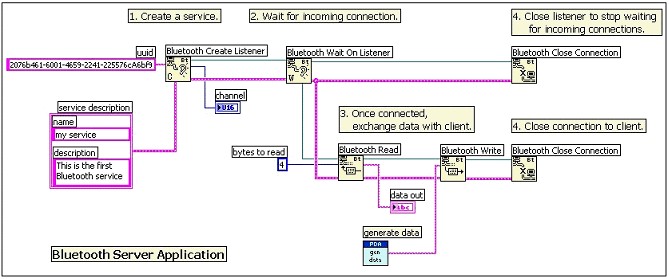
1. Create a Bluetooth service – Use the Bluetooth Create Listener function to create a Bluetooth service identified by a Bluetooth uuid. This function returns a listener ID which refers to this server through your LabVIEW application. The Bluetooth Create Listener function also returns a reserved Bluetooth channel that the server can use to listen for inbound connections. A Bluetooth channel is a global resource with only 30 channels available on any Bluetooth device. If no server channel is available the function returns an error.
2. Wait for incoming connection request – Use the Bluetooth Wait on Listener function to wait for and accept an incoming connection request from a client. This function returns a connection ID that is used to exchange data with the client.
3. Read and Write data – Use Bluetooth Read and Bluetooth Write functions to exchange data with the client.
4.Close connection – Use Bluetooth Close Connection function to close connection to the client and to stop listening for incoming connections.
The block diagram of a typical Bluetooth server application looks similar to Figure 1.
Complete the following steps to develop a Bluetooth client application using the LabVIEW Bluetooth VIs.
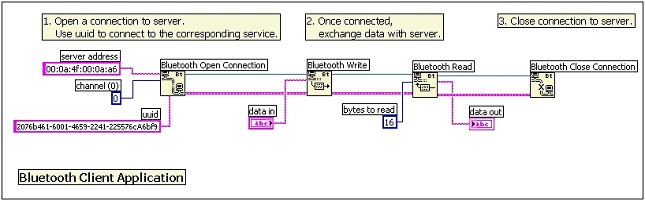
1. Request a connection to Bluetooth server – Use the Bluetooth Open Connection function to connect to a service on a Bluetooth server. Set the channel number to zero and specify a Bluetooth uuid to identify which service to connect to. The Bluetooth Open Connection function performs an SDP query to make a connection to the first service found with matching uuid. Internally, the result of an SDP query is an RFCOMM channel number to connect to. The SDP query is a tool to "translate" uuid to a channel number.
If you know the channel number associated with the service in advance, use the channel number instead of zero. Specifying a nonzero channel number bypasses the internal SDP query operation thus reducing the amount of time it takes to connect to the service. If the channel number is nonzero, LabVIEW ignores the uuid input parameter.
Note: You can use the Bluetooth RFCOMM Service Discovery VI to search for a valid channel number associated with a service on a remote Bluetooth device. This VI performs an SDP RFCOMM service discovery resulting in a channel number you can use to connect to the corresponding service on the remote Bluetooth device.
2. Read and Write data – Use Bluetooth Read and Bluetooth Write functions to exchange data with the server.
3. Close connection – Use Bluetooth Close Connection function to close connection to the server.
The block diagram of a typical Bluetooth client application looks similar to Figure 2.
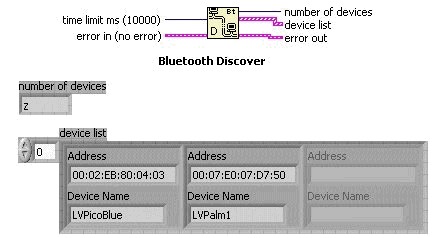
Use the Bluetooth Discover function to search for Bluetooth devices that are within the permissible range. The function returns a list of device addresses and names. These device addresses can then be used by a client to connect to a specific Bluetooth server. The optional input parameter, time limit (ms), specifies the length of Bluetooth inquiry. The default value is 10 ms and the maximum value is 30 s. If time limit is less than or equal to zero, the function returns a list of installed local Bluetooth devices.
Note: Bluetooth discovery is a slow operation because of the communication involved. A Bluetooth device address is a fixed address that is usually printed on the actual device and you can query the address from the device control setting. This address is unique to each device. If you know the Bluetooth address of the specific device you want to connect to, you can skip the discovery process and use the Bluetooth Open Connection function to connect to the device directly.
Use the Bluetooth RFCOMM Service Discovery VI to search for available RFCOMM services on a local/remote Bluetooth device. This function returns a list of available services along with the associated channel numbers. A channel number in the list can be used as an input parameter of the Bluetooth Open Connection function to make a connection to the corresponding service on the remote Bluetooth device.
A Bluetooth system in PalmOS and PocketPC provides serial port profile with a virtual serial driver. Bluetooth Serial Port profile defines procedures that devices use to emulate an RS-232/serial cable connection. The profile maps virtual Serial COM ports to actual Bluetooth channels. Bluetooth Serial Port profile enables you to use LabVIEW Serial VIs to open a connection to and exchange data with other Bluetooth devices. Bluetooth Serial Port profile cannot be used on Windows XP SP1. Other Windows Bluetooth drivers may work with the Serial Port profile.
The driver recognizes only one active serial channel at a time. You can open the serial channel as an outbound (client) port or as an inbound (server) port. When you open the port as an outbound (client) port, the driver prompts you to select a Bluetooth device (server) to connect to. When you open the port as an inbound (server) port, the driver waits to receive a connection request from the client. Bluetooth serial port is based on RFCOMM, which is different from a physical serial port. RFCOMM requires roles of a server and a client when establishing Bluetooth serial connection.