Overview
|
Software developers rarely intend for a finished application to be used only on the development computer. To address this issue, National Instruments provides the LabVIEW Application Builder, a user-friendly tool that enables LabVIEW users to configure build specifications:
- Stand-alone applications that can be distributed to users. These users will need only the LabVIEW Run-time Engine and will not be able to view or change the code.
- Shared libraries so that LabVIEW code can be called from text-based programming languages such as LabWindows/CVI, Microsoft Visual C++, and Microsoft Visual Basic. Developers using LabVIEW shared libraries will be able to use the code, but will not be able to view or edit it.
- Source distributions so that packages of LabVIEW source files can be distributed to other LabVIEW developers. You can configure specific VIs to add passwords, remove block diagrams, and apply other settings. You also can select different destination directories for VIs in a source distribution without breaking the links between VIs and subVIs.
- Installers to install stand-alone applications, and shared libraries created for the Windows platform. You can customize installers to install run-times and drivers.
- Zip files which are useful for distributing a large amount of code as a single, portable file. Use zip files to distribute instrument drivers and select source files.
Using build specifications differs significantly depending on the version of LabVIEW you use. Refer to the LabVIEW Help for the most detailed and up-to-date information about the Application Builder. You can access the LabVIEW Help by selecting Help»Search the LabVIEW Help in LabVIEW.
The LabVIEW Professional Development System includes the Application Builder. If you use the LabVIEW Base Package or Full Development System, you can purchase the Application Builder separately.
Note: You must have LabVIEW 8 or higher to complete these tutorials. Some text may differ in the software depending on which version of LabVIEW you use.
Table of Contents
Building Applications with the Application Builder
The LabVIEW Application Builder leverages the organization provided by the LabVIEW Project, which organizes and manages all of the files associated with an application. These files include VIs, project libraries, documentation, data files, hardware configuration and more. The Application Builder creates applications from user-specified files in a LabVIEW project, and individual build settings are saved in the project.
The following examples use existing VIs to step through the tasks for configuring build specifications in LabVIEW. Download the attached VIs to complete each example. You must have a project open and saved to configure a build specification.
Preparing the LabVIEW Project
- Download and unzip the file
tutorial_files.zipattached to this document. - Select File»New Project to create a project.
- Right-click My Computer and select Add Folder from the shortcut menu to add a directory of files to the project as a folder. Navigate to the files from
tutorial_files.zip. - Click the Current Folder button to add the directory to the project. The Application Builder folder appears under My Computer in the Project Explorer window.
- Save the project as
TutorialProjectin a new directory namedAB Tutorial. Use this project to complete the examples.
Note If you previously hid Build Specifications in the Project Explorer window, you must display the item again to access it. To view Build Specifications, click the Filter Project View button and select Build Specifications.
Stand-Alone Applications
You can develop stand-alone applications (executables) that only require the LabVIEW Run-Time Engine to run on systems without LabVIEW installed. Complete the following steps in each task to configure the application build specification and build and run the application. Refer to the LabVIEW Help for the most detailed and up-to-date information about building stand-alone applications. You can access the LabVIEW Help by selecting Help»Search the LabVIEW Help in LabVIEW.
Configuring the Build Specification
- From the Project Explorer window, right-click Build Specifications and select New»Application from the shortcut menu to display the Application Properties dialog box.
- Complete the following steps on the Information page of the dialog box.
- Enter
Tutorial-EXEin the Build specification name text box. The text box contains the name of the application build specification that appears under Build Specifications in the Project Explorer window. - Enter
Tutorial.exein the Target filename text box. The text box contains the filename on disk for the executable file. - Click the Browse button next to the Destination directory text box and navigate to the
AB Tutorialdirectory. Create a subdirectory namedApp. Double-click theAppdirectory and click the Current Folder button to select the directory. When you build the application, the executable file appears in this directory.
- Enter
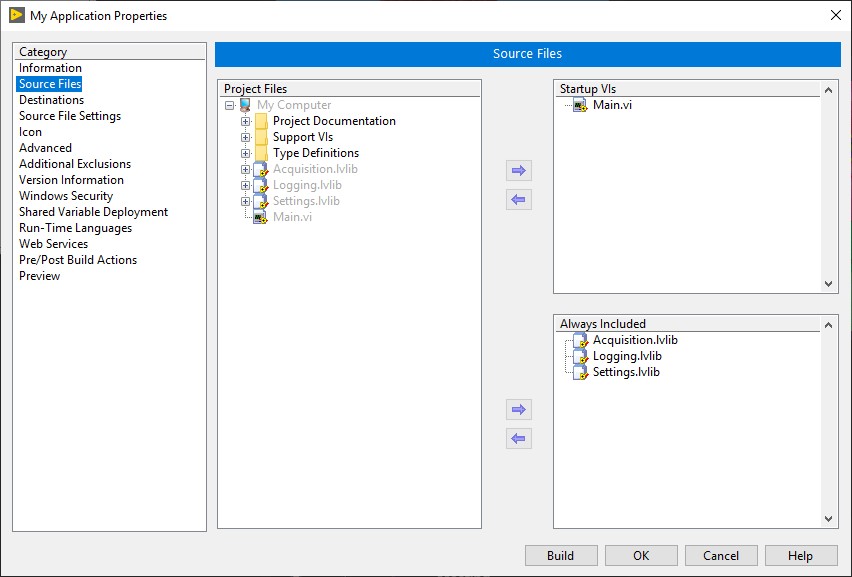
- From the Category list on the left, click Source Files to display the Source Files page, which contains settings you can use to specify which files are included and how they are included in the application. Complete the following steps on the dialog box page.
- From the Project Files tree, click the Tutorial Files folder to expand it. Select AB Tutorial GUI.vi. Click the Add Item arrow button next to the Startup VIs listbox to add the VI to the listbox. VIs you add to the Startup VIs listbox open and run when you run the application.
- From the Project Files tree, select AB Tutorial MeanMedianMode.vi. Click the Add Item arrow button next to the Always Included listbox to add the VI to the listbox. Files you add to the Always Included listbox are in the application, but the application calls them dynamically as needed.
- Repeat the previous step to add the following files to the Always Included listbox:
AB Tutorial StndDev.vi,AB Tutorial Histogram.vi, anddatafile.txt. Do not add the other files, which are for use in other examples.
Note If you move a VI to the Always Included listbox on the Source Files page, but you choose a destination in the Source File Settings page that is not the same destination as the built application, the Application Builder moves all dependencies of the VI to the destination you designate, rather than keep the dependencies in the built application. If two or more VIs that are always included or top-level VIs call a VI and try to move it to two different locations, the Application Builder moves the VI and all subVIs to the built application. To make a VI that is specified as Include if referenced move to a new location, you must specify the VI as Always Included on the Source Files page.
- From the Category list, select the following to explore the settings you can configure in a build specification. For this exercise, do not change the settings on these dialog box pages.
- Destinations—Create custom destinations where files in your application will be stored when the executable is created. The default destinations are the application and support directories, but you can add custom destinations to help you organize complex sets of files to fit your needs. For example, you can create an additional directory to hold all of the support files your intended users may need to access.
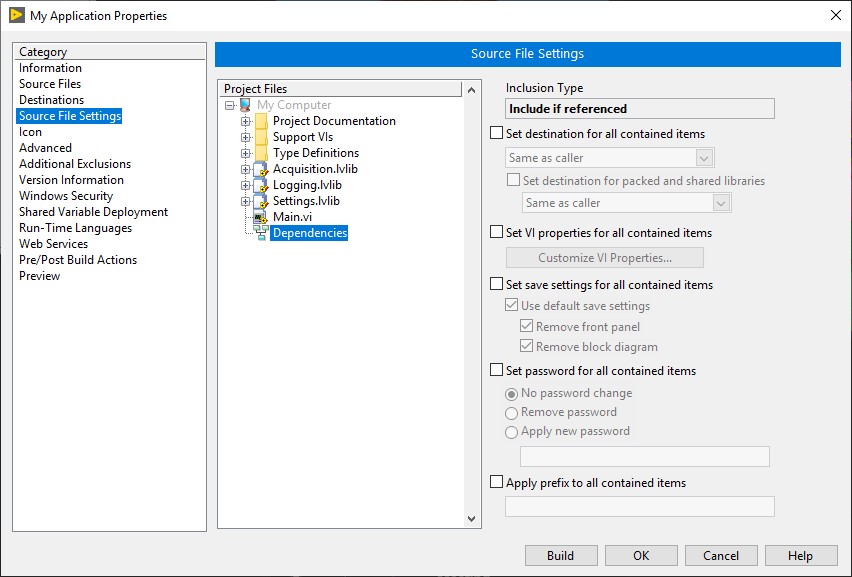
- Source File Settings—After creating custom directories, you can specify source file settings for VIs and folders included in your project. You also can change specific VI properties, such as whether or not a VI has a toolbar, for each included VI or folder of VIs. Specifically, if you want a particular VI to function as a simple error message pop-up, you can remove the title and menu bars and make the VI modal so that the user cannot access any other LabVIEW windows until the error message is closed. You also can set destination directories, including the custom destinations you created previously.
- Icon—Create an icon for your executable using the LabVIEW Icon Editor. You also can select an icon file (.ico) that is already included in the project.
- Advanced—Adjust advanced properties for your executable, such as the option to enable debugging. By enabling debugging, you are including the VI block diagrams with the executable. In LabVIEW 8, you can use this feature to remotely troubleshoot an executable. When you connect to the application over a network, you can use highlight execution, probes, and other LabVIEW debugging tools to troubleshoot problematic behavior.
- Additional Exclusions—Configure the components on this page to reduce the size of your application.
- Version Information—Edit the version information of your application including version number and product name.
- Run-Time Languages—Select which languages your application will support. The default setting is to support all languages—English, French, German, Japanese, and Korean. The language preferences apply to aspects of the shared library that the LabVIEW Run-Time Engine affects, such as dialog boxes and menus.
- From the Category list, click Preview to display the Preview page. Click the Generate Preview button to view a preview of the files that the Application Builder creates when you build the application. You can use this preview to verify that the Application Builder will create the files you want in the directories you want. You can correct errors before you build the application.
- Click the OK button to close the dialog box and update the project with the build specification settings. The Tutorial-EXE build specification appears under Build Specifications in the Project Explorer window.
Building and Running the Application
- Save the project. LabVIEW does not save build specifications settings on disk until you save the project.
- Right-click the Tutorial-EXE build specification and select Build from the shortcut menu to build the application. A dialog box displays the progress of the build. When the dialog box displays the Build Complete message, click the Done button.
- Navigate to the
AB Tutorial\Appdirectory. The directory should contain the executable fileTutorial.exe, the LabVIEW configuration settings fileTutorial.ini, and thedatadirectory, which contains the support filesdatafile.txtandlvanlys.dll. - Double-click
Tutorial.exeto run the application. A file dialog box prompts you to navigate to and select thedatafile.txtfile, located in thedatadirectory created with the application. - Click the Acquire Data button to load data in the buffer. Click the Graph Data button to display the data in the graph on the right. Select an analysis to perform in the Type of Analysis section and click the Analyze button to display statistics on the data.
- Click the Stop button to close the application.
Shared Libraries
Complete the following steps in each task to configure the shared library build specification and build the shared library. Refer to the LabVIEW Help for the most detailed and up-to-date information about building shared libraries. You can access the LabVIEW Help by selecting Help»Search the LabVIEW Help in LabVIEW.
Configuring the Build Specification
- From the Project Explorer window, right-click Build Specifications and select New»Shared Library from the shortcut menu to display the Shared Library Properties dialog box.
- Complete the following steps on the Information page of the dialog box.
- Enter
Tutorial-sharedlibin the Build specification name text box. The text box contains the name of the shared library build specification that appears under Build Specifications in the Project Explorer window. - (Windows) Enter
Tutorial-sharedlib.dllin the Target filename text box. The text box contains the filename on disk for the executable file. (Mac OS) EnterTutorial-sharedlib.framework. (Linux) EnterTutorial-sharedlib.so. - Click the Browse button next to the Destination directory text box and navigate to the
AB Tutorialdirectory. Create a subdirectory namedSharedLib. Double-click theSharedLibdirectory and click the Current Folder button to select it. When you build the shared library, the files appear in this directory.
- Enter
- From the Category list on the left, click Source Files to display the Source Files page, which contains settings you can use to specify which files are included and how they are included in the shared library. Complete the following steps on the dialog box page.
- From the Project Files tree, click the Tutorial Files folder to expand it. Select AB Tutorial MeanMedianMode.vi. Click the Add Item arrow button next to the Exported VIs listbox to add the VI to the listbox and display the Define VI Prototype dialog box. LabVIEW exports VIs you add to the Exported VIs listbox so you can send and return values to and from the shared library.
- Complete the following steps from the Define VI Prototype dialog box.
- Click the return value parameter in the Parameters listbox. Verify that the Function Prototype description begins with
void. - Verify that the Parameters listbox includes an input named Array and outputs named mean, median, and mode.
- If the function does not contain these parameters, click the blue Add Function (+) button to add the parameters and set the values to input or output.
- Click the OK button to save the configuration settings and close the Define VI Prototype dialog box.
- Click the return value parameter in the Parameters listbox. Verify that the Function Prototype description begins with
- From the Project Files tree, select AB Tutorial StndDev.vi. Click the Add Item arrow button next to the Exported VIs listbox to add the VI to the listbox and display the Define VI Prototype dialog box.
- From the Define VI Prototype dialog box, complete the steps listed above for the
AB Tutorial MeanMedianMode.vi, but with different parameters. Verify that the Parameters listbox includes an input named Array and an output named standardDeviation. - From the Project Files tree, select AB Tutorial Histogram.vi. Click the Add Item arrow button next to the Exported VIs listbox to add the VI to the listbox and display the Define VI Prototype dialog box.
- From the Define VI Prototype dialog box, complete the steps listed above for the
AB Tutorial MeanMedianMode.vi, but with different parameters. Verify that the Parameters listbox includes an input named Array and an output named HistogramOut.
- From the Category list, click Destinations, Source File Settings, Advanced, Additional Exclusions, Version Information, and Run-Time Languages to explore the settings you can configure in a build specification. For this exercise, do not change the settings on these dialog box pages.
- From the Category list, click Preview to display the Preview page. Click the Generate Preview button to view a preview of the files that the Application Builder creates when you build the shared library. You can use this preview to verify that the Application Builder will create the files you want in the directories you want. You can correct errors before you build the shared library.
- Click the OK button to close the dialog box and update the project with the build specification settings. The Tutorial-sharedlib build specification appears under Build Specifications in the Project Explorer window.
Building the Shared Library
- Save the project. LabVIEW does not save build specifications settings on disk until you save the project.
- Right-click the Tutorial-sharedlib build specification and select Build from the shortcut menu to build the shared library. A dialog box displays the progress of the build. When the dialog box displays the Build Complete message, click the Done button.
- Navigate to the
AB Tutorial\SharedLibdirectory. The directory should contain the shared library fileTutorial-sharedlib.dll, the fileTutorial-sharedlib.hthat contains parameter prototypes for the shared library functions, the LabVIEW configuration settings fileTutorial.ini, and thedatadirectory, which contains the support files for the shared library.
You can call the shared library from a number of programming languages, including LabVIEW and C.
Installers (Windows)
You can create a single installer that will install the LabVIEW Run-Time Engine, any hardware drivers, and MAX configuration settings necessary for running the application. Complete the following steps in each task to configure the installer build specification and build and run the installer. Refer to the LabVIEW Help for the most detailed and up-to-date information about building installers for Windows. You can access the LabVIEW Help by selecting Help»Search the LabVIEW Help in LabVIEW.
Configuring the Build Specification
- From the Project Explorer window, right-click Build Specifications and select New»Installer from the shortcut menu to display the Installer Properties dialog box.
- Complete the following steps on the Product Information page of the dialog box.
- Enter
Tutorial-Installerin the Build specification name text box. The text box contains the name of the installer build specification that appears under Build Specifications in the Project Explorer window. - Enter
AB Tutorialin the Product name text box. The text box contains the name that displays when the installer runs. - Click the Browse button next to the Installer destination text box and navigate to the
AB Tutorialdirectory. Create a subdirectory namedInstaller. Double-click theInstallerdirectory and click the Current Folder button to select the directory. When you build the installer, the files appear in this directory.
- Enter
- From the Category list on the left, click Source Files to display the Source Files page, which contains settings you can use to specify which files are included and how they are included in the installer.
- From the Project View tree, click the Tutorial-EXE build specification to select it. From the Destination View tree, click the TutorialProject folder to select it. Click the Add Item arrow button next to the Destination View tree to add the application build specification files to the installer.
- From the Category list, click Shortcuts to display the Shortcuts page, which you can use to create shortcuts to the files that the installer installs and to determine the location of the shortcuts. Complete the following steps on the Shortcuts page to create a shortcut on the desktop.
- Click the Add Shortcut button to display the Select Target File dialog box. Double-click the
Tutorial.exefile to select it. - Change the setting in the Directory ring to
[DesktopFolder]so the shortcut appears on the desktop. - Change the text in the Name text box to
Tutorial Application. - Delete the text in the Subdirectory text box so the shortcut appears directly on the desktop and not within a subdirectory.
- Click the Add Shortcut button to display the Select Target File dialog box. Double-click the
- From the Category list, click Additional Installers to display the Additional Installers page, which you can use to include National Instruments product installers that you need in the installer build. The National Instruments Installers to Include listbox contains a list of the installers available on the computer.
- Place a checkmark in the NI LabVIEW Run-Time Engine checkbox, if a checkmark is not already present, to include the LabVIEW Run-Time Engine in the installer. Users who want to run the application must have the LabVIEW Run-Time Engine installed.
- From the Category list, click Source File Settings, Registry, and Advanced to explore the settings you can configure in an installer build specification. For this exercise, do not change the settings on these dialog box pages.
- Click the OK button to close the dialog box and update the project with the build specification settings. The Tutorial-Installer build specification appears under Build Specifications in the Project Explorer window.
Building and Running the Installer
- Save the project. LabVIEW does not save build specifications settings on disk until you save the project.
- Right-click the Tutorial-Installer build specification and select Build from the shortcut menu to build the installer. A dialog box displays the progress of the build. When the dialog box displays the Installer build complete message, click the Done button.
- Navigate to the
AB Tutorial\Installer\volumedirectory. The directory should contain subdirectories namedbin,license, andsupportfiles, and the filesnidist.id,Setup.exe, andsetup.ini. - If you want to run the installer to test the LabVIEW Run-Time Engine installation, copy the files to a computer that does not include LabVIEW and run
Setup.exe.
Source Distributions
Complete the following steps in each task to configure the source distribution build specification and build the source distribution. Refer to the LabVIEW Help for the most detailed and up-to-date information about building source distributions. You can access the LabVIEW Help by selecting Help»Search the LabVIEW Help in LabVIEW.
Configuring the Build Specification
- From the Project Explorer window, right-click Build Specifications and select New»Source Distribution from the shortcut menu to display the Source Distribution Properties dialog box.
- Complete the following steps on the Information page of the dialog box.
- Enter
Tutorial-Distin the Build specification name text box. The text box contains the name of the source distribution build specification that appears under Build Specifications in the Project Explorer window. - Click the Browse button next to the Destination directory text box and navigate to the
AB Tutorialdirectory. Create a subdirectory namedDistribution. Double-click theDistributiondirectory and click the Current Folder button to select the directory. When you build the source distribution, the files appear in this directory.
- Enter
- From the Category list on the left, click Source Files, which contains settings you can use to specify which files are included and how they are included in the source distribution. Complete the following steps on the dialog box page.
- From the Project Files tree, click the Tutorial Files folder to expand it.
- Select all of the items in the folder.
- Click the Add Item button next to the Always Included listbox to add the items to the listbox.
- From the Category list, click Destinations, Source File Settings, and Additional Exclusions to explore the settings you can configure in a build specification. For this exercise, do not change these settings on the dialog box pages.
- From the Category list, click Preview to display the Preview page. Click the Generate Preview button to view a preview of the files that LabVIEW creates when you build the source distribution. You can use this preview to verify that LabVIEW will create the files you want in the directories you want. You can correct errors before you build the source distribution.
- Click the OK button to close the dialog box and update the project with the build specification settings. The Tutorial-Dist build specification appears under Build Specifications in the Project Explorer window.
Building the Source Distribution
- Save the project. LabVIEW does not save build specifications settings on disk until you save the project.
- Right-click the Tutorial-Dist build specification and select Build from the shortcut menu to build the source distribution. A dialog box displays the progress of the build. When the dialog box displays the Build Complete message, click the Done button.
- Navigate to the
AB Tutorial\Distributiondirectory. The directory should contain the VIs and support files from the project as well as other internal files that LabVIEW determined the source distribution needed to include.
Zip Files
Complete the following steps in each task to configure the zip file build specification and build the zip file. Refer to the LabVIEW Help for the most up-to-date information about building zip files. You can access the LabVIEW Help by selecting Help»Search the LabVIEW Help in LabVIEW.
Configuring the Build Specification
- From the Project Explorer window, right-click Build Specifications and select New»Zip File from the shortcut menu to display the Zip File Properties dialog box.
- Complete the following steps on the Zip Information page of the dialog box.
- Enter
Tutorial-Zipin the Build specification name text box. The text box contains the name of the zip file build specification that appears under Build Specifications in the Project Explorer window. - Click the Browse button next to the Destination text box and navigate to the
AB Tutorialdirectory. Create a subdirectory namedZip. Double-click theZipdirectory. EnterTutorial.zipin the file name field and click the Select button. When you build the zip file, a file with the name you specified appears in the directory you specified.
- Enter
- From the Category list on the left, click Source Files to display the Source Files page, which contains settings for the files to include in the zip file.
- From the Source Files page, place a checkmark in the Zip entire project checkbox so the zip file includes all the VIs and support files in the project. This is a faster option than moving files from the Project Files tree to the Included Items listbox if you want to include all the project items in the zip file.
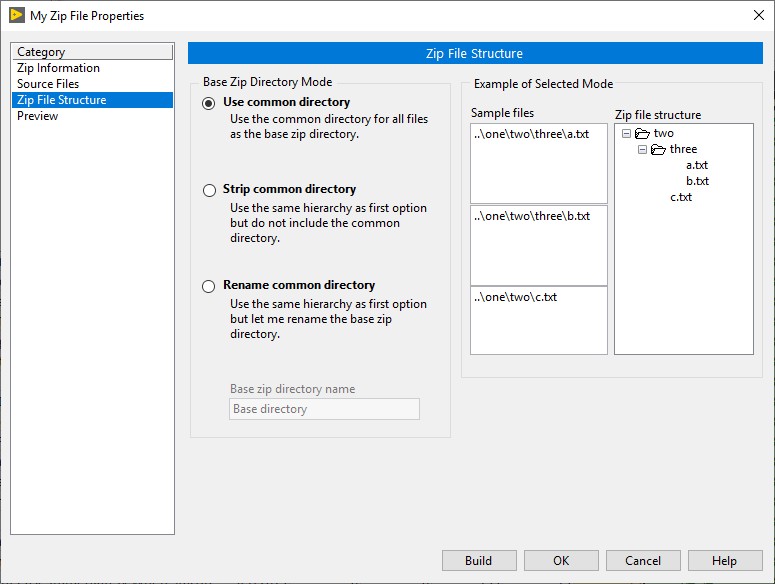
- Click Preview to display the Preview page. Click the Generate Preview button to view a preview of the compressed file structure that the Application Builder creates when you build the zip file. You can use this preview to verify that the Application Builder will include the files you want from the directories you want. You can correct errors before you build the zip file. Notice that the zip file includes all project items and the project file (
.lvproj) itself. - Click the OK button to close the dialog box and update the project with the build specification settings. The Tutorial-Zip build specification appears under Build Specifications in the Project Explorer window.
Building the Zip File
- Save the project. LabVIEW does not save build specification settings on disk until you save the project.
- Right-click the Tutorial-Zip build specification and select Build from the shortcut menu to build the zip file. A dialog box displays the progress of the build. When the dialog box displays the Build complete message, click the Done button.
- Navigate to the
AB Tutorial\Zipdirectory. The directory should contain the fileTutorial.zip.
You can use a standard decompression tool to decompress the zip file and view the VIs and support files it includes.
Reader Comments | Submit a comment »
The document has been updated!
Based on the feedback we've received,
the above document has been updated
with more details and specific
information on how to distribute
applications with the LabVIEW
Application Builder.
- National Instruments
- Aug 21, 2009
This document has been updated
Based on the various feedbacks we've
received over time, this document has
been updated with more details on how
to distribute applications using the
LabVIEW Application Builder
- Nitin T, National Instruments. - Aug 20, 2009
This is no help!
I have built a vi and I want to convert it
into an executable, but for the life of me
there is no step-by-step direction(s) to
be found anywhere on HELP or on the NI
site. This is unfortunately a common
event.
- Mar 11, 2008
This document is very complicated and
will not give exact result as we want. Why
in previous version easy to build EXE but
the latest is complicated!!
- masdi.dasuki@motorola.com - Jan 23, 2008
Issues
I too am having issues. I cant sem to get
a callback function to work at all. More
information is needed. Someone needs
to read these messages.
- Chuck Streb, GM. chuck.streb@gm.com - Jul 20, 2007
This blows, typical NI documentation.
Why is it so hard to create a EXE file?
- Jun 25, 2007
Building exe's with LV Lib VIs as subVIs - Part II
The LabVIEW Runtime Engine 8.2 that I
had installed on the target PC using the
installer on the distribution CD was not
working with these exe's. However, it
was able to run an exe on the target PC,
when the exe only contains user created
sub VIs (no VI Lib files).
I had to create an Installer from a Project
to re-install the LabVIEW Runtime
Engine 8.2. After doing this the more
complex exe's now run on the target PC.
To all those still searching for a way to
build a working exe: Good Luck!
- Dennis Kessler, Ericsson. dennis.kessler@ericsson.com - May 24, 2007
Building exe's with LV Lib VIs as subVIs - Part I
I have to agree with Ted Anderson regarding the following problem: "...by specifying the top-level vi, the sub-vis that it calls can NOT be included automatically in the compilation or source distribution?"
This is a very serious omission, and the failure to properly document it is inexcusable.
Note that the following _is_ successful: Running an exe on the target PC, where the exe only contains user created sub VIs (no VI
Lib files). The LabVIEW Runtime Engine 8.2 was installed on the target PC using the installer on the distribution CD.
I ran into the problem mentioned by Mr. Anderson when trying to build an exe that calls VI Lib files ( Histogram.vi, etc.) as sub VIs. In this case I added a re-named copy of Histogram.vi to my llb and tried to build an exe of the top level VI. (yes, I confirmed that my VI was calling the re-named VI, and that it resided in the llb.) The exe failed to run when launched on the target PC (complaining that the front panel for
Histogram2.vi could not be found).
Thankfully I read Mr. Andersona's comment and opened all of my sub VIs before creating the Project and building the exe. In Source File Settings I had to select a "Dynamica" for the VI Lib files, and for the one pop-up VI I had. The top level VI is selected as the a 'Top Level VIa'
After doing this I was still not able to run the exe on the target PC. The final step was
from Chin Lina's email thread in the NI Developer Zone: http://forums.ni.com/ni/board/message?board.id=170&message.id=226748&query.id=22454
- Dennis Kessler, Ericsson. dennis.kessler@ericsson.com - May 23, 2007
Not enough information
I agree with first comment. It does not
tell you how to do what you need to do. It
tells you that you CAN do it.
A step by step example should be
provided, along with an explanation of
what needs to be exported/configured
etc.
- Jeffrey Scharpf, Milwaukee Electric Tool. jeffrey.scharpf@milwaukeetool.com - Apr 18, 2007
What about sub-vis?
Am I to understand that by specifying the
top-level vi, the sub-vis that it calls can
NOT be included automatically in the
compilation or source distribution? If not,
why? Seems like that makes sense, and would
obviously be of benefit to the developer.
The only way I know of to specify all of the
sub-vis is to meticulously/ tediously step
through each and every block diagram, find
sub-vis, load them, check their properties,
go to the project window, find the sub-vi in
the directory, and repeat the process over
and over and over. Can't believe I'm the
first to complain about this. What am I missing?
- Ted Anderson, CPP Wind Engineering. tanderson@cppwind.com - Mar 26, 2007
This document is OK as an introduction, but
more details are needed. The documentation
that ships with LV8 has very little detail
about using the application builder. The term
"Dyanmic VI", used to configure the
application builder, is not to be found in
the index or searching the documentation. Is
this a sub VI? Related to reference nodes?
Likewise there are very few details on making
an installer.
- Frank Ogletree, Lawrence Berkeley Lab. ogletree@lbl.gov - Feb 21, 2006
Legal
This tutorial (this "tutorial") was developed by National Instruments ("NI"). Although technical support of this tutorial may be made available by National Instruments, the content in this tutorial may not be completely tested and verified, and NI does not guarantee its quality in any way or that NI will continue to support this content with each new revision of related products and drivers. THIS TUTORIAL IS PROVIDED "AS IS" WITHOUT WARRANTY OF ANY KIND AND SUBJECT TO CERTAIN RESTRICTIONS AS MORE SPECIFICALLY SET FORTH IN NI.COM'S TERMS OF USE (http://ni.com/legal/termsofuse/unitedstates/us/).