Academic Company Events NI Developer Zone Support Solutions Products & Services Contact NI MyNI

Document Type: Tutorial
NI Supported: Yes
Publish Date: Dec 14, 2006


Feedback


Yes No

Related Categories

Related Links - Developer Zone

Related Links - Products and Services

Creating Executables with the LabVIEW Application Builder

48 ratings | 3.69 out of 5
Print

Refer to the LabVIEW Help (linked below) and the LabVIEW Application Builder User Guide (linked below) for the most recent version of these instructions.

The LabVIEW 5.1 Application Builder marked a significant change in the way you create executables from your LabVIEW VIs. Previous versions of the Application Builder used a three-step process to create applications: save your VIs into a LabVIEW Library (LLB) file (using the "Save With Options" feature), build the executable using this LLB file, and then create a distribution kit for your application. Each executable that you built included the LabVIEW Run-Time Engine (LVRTE), which meant that even a simple program would be at least 2 MB in size (the size of the LVRTE).

As of LabVIEW 5.1, you just tell the Application Builder what your main VI is and it does the rest, dynamically including all of your subVIs and any functions/VIs from LabVIEW that you need in your application. The exception is that you must specify any dynamically-loaded VIs or external code that you use, during the build process. The LabVIEW Run-Time Engine is no longer included with every executable, so you can have multiple executables on the same target machine, but only require one instance of the LVRTE (for each unique version of LabVIEW) to run them. This decreases the size of your executables and gives you more flexibility with your applications.

The LabVIEW 6i (6.0) Application Builder is very similar to the LabVIEW 5.1 and 5.1.1 versions with a few differences:

  • LabVIEW 6i (6.0) allows you to create dynamic link libraries (DLLs) on Windows platforms or shared libraries on MacOS/UNIX platforms.
  • The 3D Graph, DataSocket, and NI Reports support files are now part of the LabVIEW Run-Time Engine installation on Windows platforms.
  • There is a "Help" button that opens the LabVIEW Help files for the steps involved in creating an executable and/or DLL/shared library.

Creating an Executable

You have a number of options available to you when creating an executable and these are described in the following paragraphs. You can store these options with the "Save" button.

Initial Application Builder Screen
Use this screen to name the application and select the directory where the built application will be created.


[+] Enlarge Image


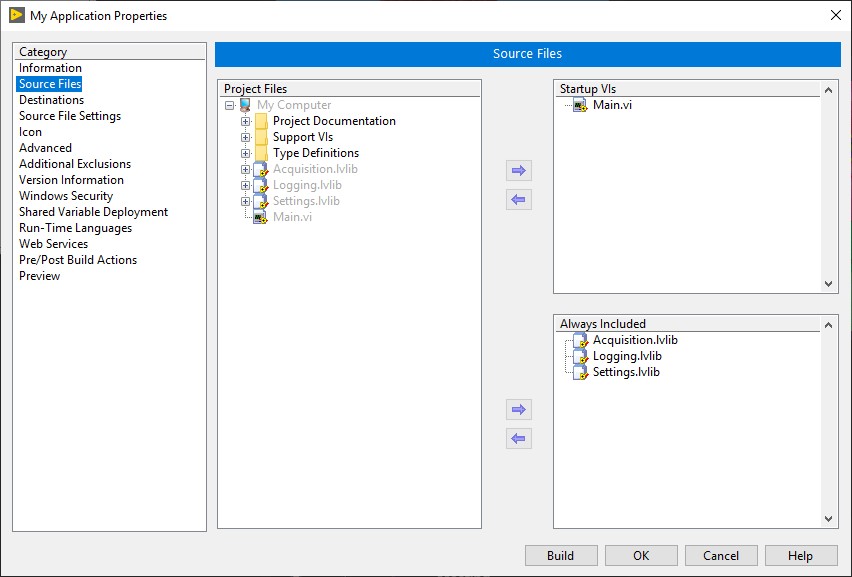
The Source Tab
The Application Builder needs to now what your main VI is, so use the "Add Top Level VI" button to specify this VI. Any subVIs that you have in your application will be included automatically. The LabVIEW 5.1 and 5.1.1. Application Builders also require you to use the "Add Dynamic VI" button to specify dynamically-loaded VIs (e.g., VIs that you load using VI Server) and the "Add Support Files" button to specify any external code (e.g., DLLs or help files) that your application uses. (Note that VIs added as dynamic will become part of the executable, as well as their subVIs.) You may use the "Custom Destinations" button to create additional subfolders for your support files.


[+] Enlarge Image


The LabVIEW 5.1 and 5.1.1 Application Builder includes the daqdrv (for data acquisition) and serpdrv (for serial communication) support files by default. The LabVIEW 6i Application Builder no longer requires daqdrv. Regardless of your Application Builder and LabVIEW version, you must always install the appropriate driver files on the target machine. For example, if your application communicates with a DAQ board and a GPIB board, then you must install NI-DAQ and NI-488.2 on your target machine.

The VI Settings Tab
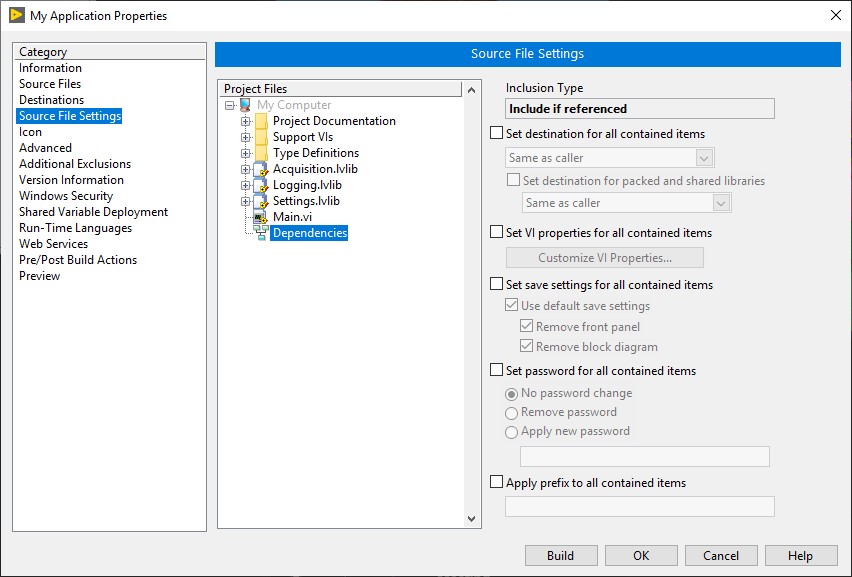
You can verify the VIs that will be included in your executable with this screen. The list includes individual settings for each VI. To change the settings for a VI, such as whether panels and diagrams are removed or whether users can see the menu or abort the VI, use the "Edit Build Settings" button. As of the LabVIEW 5.1 Application Builder, you have the option to scale your front panels to the resolution of the target system. (No more oversized controls on those smaller monitors.)


[+] Enlarge Image


The Applications Settings Tab
The Application Builder now allows you to change the icon of your executable to any icon file (.ico), but you will need an icon editor (not provided) to create this file. Also, your executable may be an ActiveX server. Please note that you will need to run the executable to register it as an ActiveX class with the Windows operating system.


[+] Enlarge Image


The Installer Tab
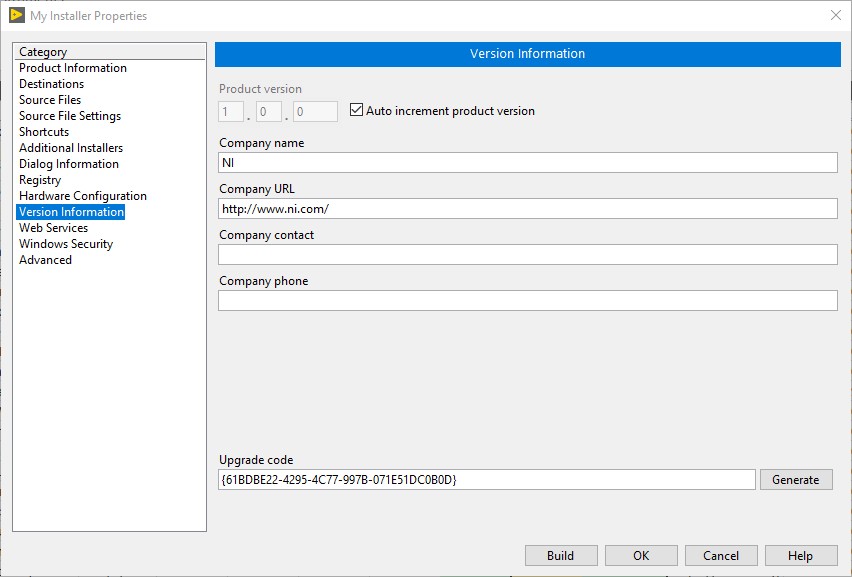
By default, no installer is created; to create an installer, check the "Create Installer" checkbox. One new feature of the installer is that you can now choose for the installer not to segment files, if you plan to ship the installer on a CD. The installer can only save to the hard drive, but if you select segmented files, it will save the compressed files to a "Disks" directory along with the setup program. Then, you can copy Setup.exe and Data.001 to the first disk, Data.002 to the second disk, and so forth.


[+] Enlarge Image

For the LabVIEW 5.1 and 5.1.1 Application Builders, the setup program does not include the LabVIEW Run-Time Engine, which has its own setup program in a directory called RunTime. The Run-Time Engine can be copied onto two 1.4 MB floppies; copy everything except "data2.cab" to the first disk, and then place "data2.cab" on the second disk.

Note: If you want your executable to use the same settings that LabVIEW uses (e.g., font settings, print settings, etc.), then you must create an ini file for your executable. See KnowledgeBase 0I4E2303 linked below.
The "Advanced" button allows you to do things like run your executable immediately after it installs on the target system. For the LabVIEW 5.1 and 5.1.1 Application Builders, if you use DataSocket, NI Reports, and/or 3D Graphs, then you also need to select those features from the "Advanced" button. For LabVIEW 6i, they are included with the LabVIEW Run-Time Engine.

Running the Executable

After you have pressed the "Build" button and Application Builder finishes writing the executable to disk, you are ready to run it. Regardless of your Application Builder and LabVIEW version, you must always install any required driver files on the target machine. For example, if your application communicates with a DAQ board and a GPIB board, then you must install NI-DAQ and NI-488.2 on your target machine. (You may see a crash or a message that a VI was not found, if the drivers that support your application are not installed.)

Creating Distribution Disks

See KnowledgeBase 1JMAJEFP (linked below) for information about creating distribution disks with the LabVIEW 5.1 and 5.1.1 Application Builders.

For LabVIEW 6i, the image files for your distribution disks will be in disks subdirectory within the destination directory that you specified in the initial Application Builder screen. You can copy them to 1.4 MB floppy disks by copying the Setup.exe file and the Data.001 file to the first disk, and then each Data.00x to a different disk, resulting in N setup disks for your application (where N is the number of data files generated during the build process). The LabVIEW Run-Time Engine is included and will automatically launch its own installer as part of the setup program for your application. Also, it will detect whether the LabVIEW Run-Time Engine is already installed on the machine and give you options to Modify, Repair, or Remove it.

Related Links:

LabVIEW Help

Manual: LabVIEW Application Builder User Guide

KnowledgeBase 0I4E2303: Using Your LabVIEW Preferences with a Stand-Alone Executable

KnowledgeBase 1JMAJEFP: Application Builder for LabVIEW 5.1 (or Higher) - Creating Distribution Disks

48 ratings | 3.69 out of 5
Print

Reader Comments | Submit a comment »

Not really stand-alone
I have exactly the same problem. I use LabView for psychological experiments. On the few occasions when I need to distribute an executable, I really don't want to have to ask people to install a run time engine as well. This makes sense if you use lots of executables on the same machine, but is a seriously daft idea for my purposes. And I haven't yet found the information how I can just include the run time engine in the application.
- Feb 10, 2007

The runtime engine requirement is a serious drawback in the Application Builder. It's a classic case of an idea that sounds good but is a failure in practice. Although there are clearly cases where a shared library may be useful and save some disk space, on the whole the approach has significantly reduced the usability and portability of Labview applications. It used to be that you could simply distribute and run a standalone Labview program over a network without worrying about installs, no longer. It would be nice if there was a way to get back to that simple no-install-needed, single file and double click solution. This document does not address this shortcoming.
- Sep 29, 2004


Legal
This tutorial (this "tutorial") was developed by National Instruments ("NI"). Although technical support of this tutorial may be made available by National Instruments, the content in this tutorial may not be completely tested and verified, and NI does not guarantee its quality in any way or that NI will continue to support this content with each new revision of related products and drivers. THIS TUTORIAL IS PROVIDED "AS IS" WITHOUT WARRANTY OF ANY KIND AND SUBJECT TO CERTAIN RESTRICTIONS AS MORE SPECIFICALLY SET FORTH IN NI.COM'S TERMS OF USE (http://ni.com/legal/termsofuse/unitedstates/us/).