From Friday, April 19th (11:00 PM CDT) through Saturday, April 20th (2:00 PM CDT), 2024, ni.com will undergo system upgrades that may result in temporary service interruption.
We appreciate your patience as we improve our online experience.
From Friday, April 19th (11:00 PM CDT) through Saturday, April 20th (2:00 PM CDT), 2024, ni.com will undergo system upgrades that may result in temporary service interruption.
We appreciate your patience as we improve our online experience.
One of the main challenges of designing and implementing distributed systems where different parts of the system need to exchange data and information over the network, is defining and building an effective communication protocol.
The Simple Messaging Communication Library (STM) can enhance the performance, usability, maintainability and scalability of a distributed system by providing a simple but effective messaging layer in your application.
Unlike raw communications APIs, using formatted packets makes data packaging and transfer more manageable and improves throughput by minimizing the transmission of repetitive data.
You can install the latest version of the STM library directly from VI Package Manager. Older versions of the STM library for use in existing applications are available in the Reference Design Portal.
Please post your questions, comments and feedback about the STM library in the STM discussion forum.
For embedded LabVIEW applications, communication with a remote client is often a critical part of the project. Embedded applications often function as 'data servers' because their primary role is to report information (status, acquired data, analyzed data, etc.) to the client. They are also often capable of responding to commands from the client to perform application-specific activities.
The complexity of these applications is reflected in the network communication requirements. The LabVIEW Real-Time Communication Wizard provides a solution, but an alternative approach is needed for other embedded targets and for applications that outgrow the capacity of wizard-based tools.
The TCP/IP protocol is the most common method for sharing information between hosts. The TCP/IP protocol provides a medium for data sharing, but it is up to the application to implement the logic that optimizes performance and makes sense of the data. For more sophisticated applications, the following additional functionality is desirable as part of the communication protocol:
This document describes a simple messaging protocol that addresses these requirements.
The installer for the Simple Messaging Library (STM), which includes example code, can be found at the link at the beginning of this document. Some of the examples emphasize LabVIEW Real-Time applications, but most will run on any LabVIEW platform.
This document illustrates an approach to LabVIEW network communication using the TCP/IP protocol (Simple TCP Messaging - STM). In addition, STM also supports UDP and serial as transport layers.
You may also consider using network-enabled Shared Variables in your application, which provide a high-level programming interface for data exchange between system components, but are not specifically designed for messaging.
The communication protocol should have the following characteristics:
In every messaging protocol there is some overhead (meta data) associated with parsing the data stream on the receiving end. Sending a complete set of meta data with every package adds significant overhead.
Since we are focusing on high-performance applications, we want to minimize the communication overhead by sending a reduced set of meta information with each packet. The approach used by the STM protocol is to create a separate "meta data" message containing an indexed list of meta information that is sent once whenever an STM connection is made between hosts. By doing this, each host has all of the information that it needs to decode subsequent messages. When sending a message, the host packetizes the data with a meta data index that the receiver can use to look up the decoding information.
You will see that by using this approach we are able to create an abstraction from the transport layer, where the user sends and receives data by name. The underlying transfer mechanism is completely hidden.
Now that we have explained the concept, we will discuss the LabVIEW implementation.
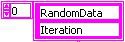
The meta data is implemented as an array of clusters. Each array element contains the data properties necessary to package and decode one variable value. We have only defined the 'Name' property, but using a cluster allows you to customize the STM by adding meta properties (such as data type) according to your application requirements. The meta data cluster is a TypeDef, so adding properties should not break existing code.
The following figure shows an example of the meta data cluster configured for two variables: 'Iteration' and 'RandomData'.
Figure 1. Meta Data Array of Strings
Before each data variable is transmitted, a packet is created that includes fields for the Data Size, the Meta Data ID and the data itself. Figure 2 shows the packet format.
Figure 2. Packet Format
The Meta Data ID field is populated with the index of the meta data array element corresponding to the data variable. The receiving host uses the Meta Data ID to index the meta data array to get the properties of the message data. This mechanism is very effective since it allows for ease of use (read and write to variable names) with minimum overhead.
Since only the Meta Data ID is transferred, notice how the meta data cluster can be extended to include more static variable properties without impacting the transmission overhead.
The STM protocol is more efficient and has higher throughput when transmitting large data payloads. Each message includes 48 (32 + 16) bits of overhead for the data size and Meta Data ID. A Boolean converted to string is represented by 1 character (8 bits). When a Boolean value is sent, the payload efficiency is 8 bits / (48 + 8) bits, or 14%. When an array of 1000 doubles (1000*64 bits) is sent, however, the payload efficiency is much higher (64,000 bits / 64,048 bits = 99.9%).
When streaming a significant number of individual data values, we recommend aggregating them into an array before sending them.
The STM API is very simple. For basic operation it consists of a Read VI and a Write VI. There are also two supplemental VIs to transmit the Meta Data, but their use is not mandatory. Each of the main VIs are polymorphic which allows for the use with different transport layers. The API for each layer is very similar. The following is a brief description of the main API VIs (only the TCP/IP versions are shown). Additional utility VIs are installed as well and are documented in the VI Help.
STM Write Message: Use this VI to send any type of data to a remote host. This VI creates a packet based on the data, the data name and meta data information. When this VI is called, it retrieves the index of the variable specified by Name in the meta data array. It then assembles the message packet and sends it to the remote host via TCP/IP using the connection ID.
The data must be in string format for transmission. Use the Flatten to String primitive to convert the message data to a string.
The Connection Info consists of a transport layer reference and the meta data array. This is an output from both the STM Read Meta Data and STM Write Meta Data VIs.
STM Write Message (TCP).vi
STM Read Message: Use this VI to receive any type of data from a remote host. This VI reads and unpacks the meta data index and flattened string data. It looks up the meta element and returns it along with the data string. The application can then convert the flattened data to the message data type using the name or other meta properties as a guide. In the example below, the variable named "RandomData" is always converted to an "Array of Doubles" data type).
This VI is usually used inside a loop. Since there is no guarantee that data will arrive at a given time, use the 'timeout' parameter to allow the loop to run periodically and use the 'Timed Out?' indicator to know whether to process the returned values.
STM Read Message (TCP).vi
STM Write Meta Data: Use this VI to send meta data information to a remote host. For correct message interpretation, the meta data must be consistent on both receiving and sending side. Instead of maintaining copies of the data on each host, we recommend that you maintain the meta data on the server and use this VI to send it to clients as they connect.
STM Write Meta Data (TCP).vi
STM Read Meta Data: Use this VI to receive meta data information from a remote computer. This VI reads and unpacks the meta data array, which can be passed to the read and write VIs.
STM Read Meta Data (TCP).vi
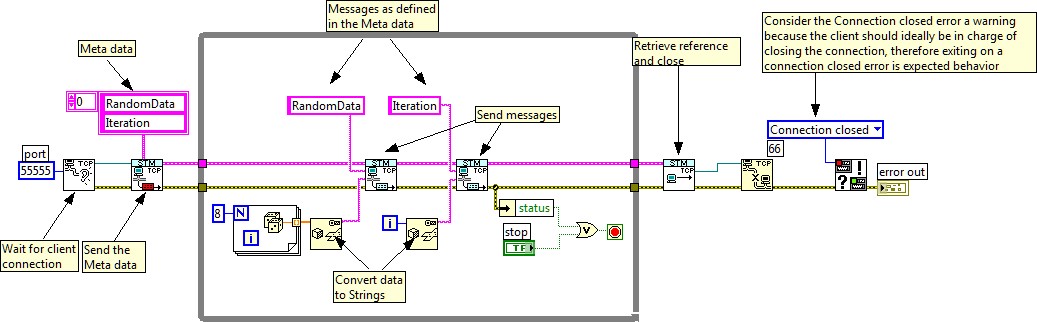
The following figure shows an example of a data server using the STM API. Notice that this program sends the meta data to a remote host as soon as a connection is established. The example writes two values: the iteration counter and an array of doubles. The meta data contains the description for these two variables (as shown in Figure 1).
Note that you only need to wire the variable name to the STM Write Message VI, which takes care of creating and sending the message packet for you. This abstraction allows you to send data by name, while hiding the underlying complexity of the TCP/IP protocol.
Also note that the application flattens the data to a string before it is sent. For simple data types (including those shown in Figure 3) it is possible to use a typecast, which is slightly faster than the Flatten to String VI. However Flatten to String also works with complex data types such as clusters and waveforms.
Figure 3. Basic STM Server Example
As you can see, the protocol can be customized and expanded to fit your application requirements. As you add variables, simply add an entry to the meta data array and a corresponding STM Write Message VI for that variable.
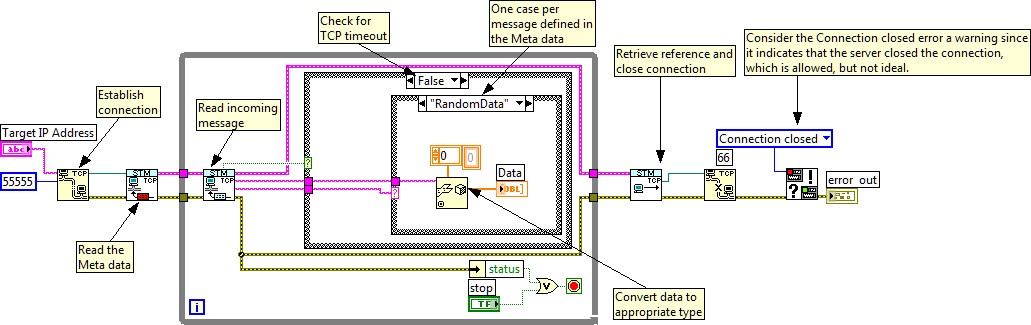
Receiving data is also very simple. The design pattern shown in Figure 4 waits for the meta data when the connection is established with the server. It then uses the STM Read Message VI to wait for incoming messages. When a message is received, it converts the data and assigns it to a local value according to the meta data name.
The case structure driven by the data name provides an expandable method for handling data conversion. As you add variables, simply create a case with the code to convert the variable to the right type and to send it to the right destination.
Note that an outer case structure handles timeout events.
Figure 4. Basic STM Client Example
One advantage of this design pattern is that it centralizes the code that receives data and assigns it to local values.
Another advantage is that the STM Read Message VI sleeps until data is received (or a timeout occurs), so the loop is driven at the rate of incoming data. This guarantees that no data is lost and no CPU time is wasted polling for incoming data.
Note: Since the client has no knowledge of the meta data until run time, the developer must be sure that the application handles all possible incoming variables. It is a good practice to implement a 'Default' case to trap any 'unknown' variables as an error condition.
The STM protocol can significantly improve productivity and client/server performance. The STM protocol abstracts the transport layer, which enables you to create intuitive code that is easier to expand and maintain.
The STM library is suitable for many client/server applications, but it also provides a foundation for higher-level design patterns. To read about a design pattern for command-based bidirectional communication, please see the article on Command-based Communication.
The Multi-client Server Design Pattern Using Simple TCP/IP Messaging provides a more complex design pattern for use of STM in a Client Server architecture.

c-53683?scl=1)
_1c-53683?scl=1)
c-53683?scl=1)
c-53683?scl=1)