TestStand System Deployment Best Practices
Overview
Once you create a deployable solution, you have several options for deploying that solution to one or more test stations. This document discusses a deployment strategies using NI packages, installer technology, or a shared network drive.
Contents
- Identifying Components Required for Deployment
- Choosing a Deployment Mechanism
- View Additional Sections of the TestStand Advanced Architecture Series
Identifying Components Required for Deployment
A test system is typically complex, containing many components and files, all of which must be properly deployed to ensure that the test runs smoothly on a production system. In this document, we consider only the software components used to test a product.
TestStand systems have many components that must be included in a deployment
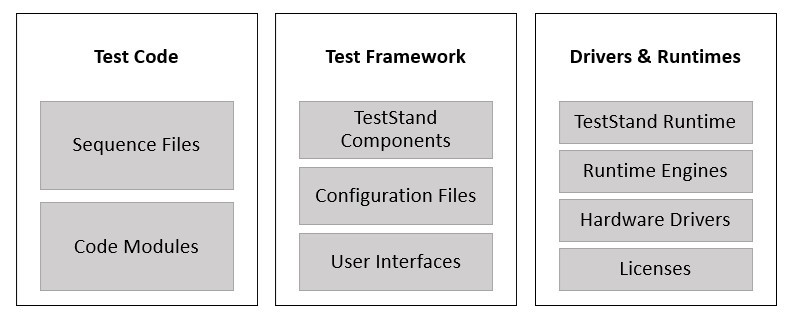
The main components of a TestStand test system are Test Code, Test Framework Files, and Drivers and Runtime Engines.
Test Code
The test code includes the sequence files and code modules you create to implement the actual tests. When deploying test code, you must ensure that all required dependencies of your code modules are included, and that files are deployed in the proper locations on disk so that they can be found by their callers. Typically, the test code includes one or more sequence files along with the files they reference.
Sequence Files
Sequence files depend on the code modules they call, sequence file dependencies, and supplemental files such as property loader files. You can use the TestStand Deployment Utility to analyze sequence files and enumerate these dependencies. Dynamically referenced dependencies, such as a property file specified by TestStand expression, or implicitly referenced files, such as test documentation, will not be recognized by the TestStand Deployment Utility.
When possible, you should store all dependent files for a particular sequence file in a subdirectory beneath the sequence file path. This structure has the following benefits:
- The files can be referenced using a path relative to the current sequence file, ensuring the paths remain valid if you copy the sequence file and dependencies to another location.
- Keeping track of dynamically called and implicit dependencies is much easier, since you can deploy the dependencies directory as a whole.
You must also consider the dependencies of the code modules themselves. The process for deploying these dependencies varies based on the module type.
LabVIEW Code Modules
LabVIEW code modules include VIs, LabVIEW class member calls, express VI calls, and property node calls. In order to execute LabVIEW code modules on a system without the LabVIEW Development system installed, you must ensure that all dependencies of VI code modules are saved in the same version of LabVIEW. You will also need to include any dependent VIs that ship with the LabVIEW Development system, such as those present in the vi.lib or instr.lib directories in the LabVIEW installation, are included in the deployment. You can use the following approaches to ensure that both conditions are met:
- Create a LabVIEW source distribution for all code module VIs, and ensure that the options to exclude vi.lib, instr.lib, and user.lib are not selected. To prevent cross-linking between your source VIs and the VIs in the source distribution, ensure that you add the files to a new project library.
- Create one or more packed project Libraries (PPLs) for your source files. A PPL is a single compiled file containing all VIs and their dependencies. With this approach, you can update existing deployments by replacing a deployed PPL with an updated version.
*PPLs do not include dependencies that are DLLs, or VIs that are already compiled into a PPL
To handle much of this process automatically, you can use the TestStand Deployment Utility to deploy your sequence files that call LabVIEW code modules. The TestStand Deployment Utility saves all VIs in a single LabVIEW version, and includes any required dependencies that are part of the LabVIEW ADE. The deployment utility can also optionally generate a Packed Project Library (PPL). For more information, refer to Deploying VIs in LabVIEW Packed Project Libraries.
C/C++ DLL Dependencies
Typically, any dependent DLLs will be copied into the build directory or are system DLLs which are included with the required runtime engines. When possible, you should not directly deploy DLLs or other binaries directly to Windows System Directories, but instead determine the software that installs these dependencies, and include it in your deployment. Refer to the Drivers and Runtimes section below for more information on deploying additional software.
.NET Dependencies
Like unmanaged C/C++ DLL, managed .NET DLLs are compiled code which can be executed without an ADE. Unlike C/C++ DLLs, .NET assemblies may reference dependent assemblies in the global assembly cache (GAC), which can include assemblies that are installed with drivers or runtime software, but can also include your own code.
When building .NET assemblies, you can use the ‘Copy Local’ property for referenced assemblies to include a copy of them next to your assembly. By doing so, you can ensure that .NET dependencies are deployed by deploying the folder containing your assemblies and dependencies.
Test Framework Files
In addition to test code, you must also deploy TestStand framework files. If you include the TestStand Runtime in your deployment, the default versions of these files will be installed on the system. However, if you have customized versions of these components, you will need to include them in the test system deployment.
TestStand Configuration Files
TestStand Configuration Files store the settings of the local installation of TestStand. These files describe and drive the behavior of a test system. TestStand Configuration Files are located in the <TestStand Application Data>\Cfg directory.
For details on the configuration files included with TestStand and what information is stored in each file, refer to the Configuration Files help topic.
TestStand Components
TestStand components are features that implement the high-level execution of the test system and are decoupled from the test sequence to improve the modularity of the TestStand architecture. TestStand components implement features such as login and logout functionality, reporting, database logging, and serial number entry. These files are located in the <TestStand>\Components directory.
For details of the items in the TestStand components directory, refer to the Components Directory help topic
TestStand User Interfaces
In order to run sequences on a deployed machine, you will need to deploy at least one user interface, since the Sequence Editor is only available on development machines. User interfaces can be simple or highly customized, depending on your needs. TestStand includes user interface applications you can deploy in the <TestStand Public>/UserInterfaces.
For specific information on creating TestStand User Interfaces for use on deployed machines, refer to the Best Practices for NI TestStand User Interface Development document.
Drivers and Runtime Engines
To execute sequences and test code on a production system, you must ensure that all required runtime engines (runtimes) and hardware drivers are installed. Runtime engines are required for software components to execute, such as DLLs, VIs, and Sequence files. Drivers are required for hardware components used by the test system. You will always need to deploy the TestStand runtime, which contains the TestStand engine and supporting files.
If you deploy using the TestStand Deployment Utility, you can choose to detect and include the required version of Drivers and Runtimes that are referenced by code modules. If you do not include the runtime, TestStand Deployment Utility instead provides an informational log message indicating which versions should be included in the deployment.
Software Licenses
You must ensure that the proper software licenses are available for deployed machines. Each deployed machine minimally requires a base deployment license, which allows for sequence execution, but not development. Many runtime engines, such as the LabVIEW and LabWindows/CVI Runtimes, do not have any licensing requirements. You should consult the documentation for any additional components you deploy to ensure that you obtain any necessary deployment licenses. Refer to the Deployment licenses section of the Deployment and Debug Licenses for NI software help topic for a list of all NI products which require licenses on deployed applications.
If you are deploying to a large number of production computers, NI provides volume licensing, allowing you to manage licenses through a central licensing server. For more information on volume licensing options, refer to the Volume License Program for Software page.
Choosing a Deployment Mechanism
Once you have defined the set of files that you need to include in your test system deployment, you will need to choose a mechanism to distribute the files to production computers. The following sections describe the following deployment mechanisms:
NI Package-Based Deployment
NI packages provide a mechanism to consolidate all the files in the deployment into a single file, which you can deploy and extract to the correct locations on production computers using the NI Package Manager. You can use the TestStand Deployment Utility to build a package containing all the files in the deployment. For package-based deployments, drivers and components that are required by the deployment are referenced as dependencies of the package but are not included in the package itself.
When you install the package on a production computer, NI Package Manager will detect these dependencies and allow you to download and install these packages. You can also use SystemLink software to provide a repository of NI packages within your organization, including NI packages you create. For more information on using SystemLink to manage package-based deployments, refer to How Do I Configure Systems and Deploy Software With SystemLink?
Because each NI package is a singular component, you can update a package-based deployment by creating a new version of the package with an updated version number. Once the new version has been tested and validated, you can distribute it to production computers through traditional file transfer or through SystemLink.
Installer-Based Deployment
Another approach for deploying files is to create an installer that contains all the required components of the deployment, which can be copied and installed on test station computers. Unlike packages, installers can include required drivers and components within the installer. Including these components makes the installer much larger on disk but ensures that the drivers and runtime engines are always included and available. The TestStand Deployment Utility allows you to create an installer for your TestStand system without direct knowledge of Microsoft installer technology, and offers the following features:
- Distribute files to specific directories on the target computer, such as the <TestStand> directory or the <Desktop> directory.
- Import hardware configuration you generate in Measurement and Automation Explorer (MAX).
- Can include additional components including drivers and runtimes.
- Ability to create patch installers to apply updates to an existing deployment.
For more detail on the features available from TestStand Deployment Utility, refer to Building an Installer with the TestStand Deployment Utility topic in the TestStand help. In most cases, the TestStand Deployment Utility provides the required features to build a customized deployment installer. If you need additional control of the behavior of the deployment installer, you can create an installer using third party tools. Refer to Building an Installer with Third-Party Tools for more information on cases where this may be necessary.
To apply updates to an existing installer, you can use TestStand Deployment Utility to create a patch installer, which only includes updated components. For more information on creating patch installers, refer to the Patching Deployments help topic. In addition, consider creating multiple installers to modularize the deployment, for example having separate installers for Test code, TestStand Components, and Drivers & Runtime engines. With this approach, you can update and distribute only the installers which have changes.
Since installers automatically place files in the correct locations and can include required drivers and runtime engines, it is straightforward to deploy the system once a working installer is created. However, because installer-based deployment must be moved and installed to each test computer, they are typically best suited to deployments that are used on a smaller number of test computers.
Network Drive Deployment
With network drive deployment architectures, files are shared with test station computers directly using a network drive, without consolidation into an installer. Access to files on the network drive can be managed by a source code control solution. With this approach, test developers create and update files in the shared repository. Once finalized for testing, these files are then either copied to production machines, or used directly from the network location.
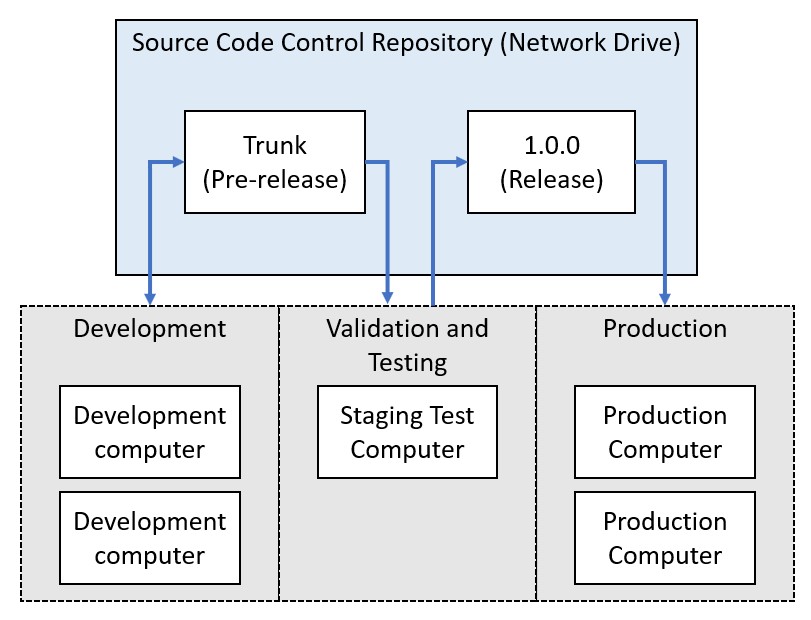
With a network drive deployment strategy, you use a shared repository to share files between development, staging, and production computers
When developing new test code, it is important to ensure that code in development is never used on deployed systems until it has been tested and validated. Typically, a production computer with access to testing hardware is designated as a staging tester, and is used to validate and test pre-release test systems. Once the test system has been validated on the staging tester, it can be deployed to production machines.
The best approach for ensuring that deployed code is validated varies depending on how often updates need to be applied to test stations.
For cases where frequent updates are needed, a Continuous Integration and Delivery (CI/CD) approach can help ensure that the latest code is available on test computers, while still ensuring the code has been properly tested and validated. With a CI/CD approach, you automate much of the procedure to build, test, and deploy updates to test code to reduce overhead as much as possible. You can use third party tools, such as Jenkins, to implement this type of automation.
For more tightly controlled environments, validation requirements are typically very stringent, and therefore test system updates cannot occur frequently. For these test systems, define a separate repository or trunk where developers make changes and add new features to the test. Once the latest version of the test system has been finalized and validated, developers create a versioned branch of the trunk for use on production machines. This branch should be locked within source code control to prevent any changes to validated code. Once the new branch is completed and validated, create a new versioned branch containing the code.
To deploy the test code, production machines obtain a copy of the versioned code, which should remain read-only to ensure that the it is unchanged. To further ensure that no changes are made to validated files, you can add code to the test sequence to validate the checksums of all files. For more information on this approach, refer to the Best Practices for Verification and Validation of TestStand Systems document.
Deploying Drivers and Runtime Engines with Network Drive Deployments
When using a network drive-based approach, you will need to use a separate mechanism to install the necessary drivers and runtimes on test computers. Runtime engines and drivers can be deployed through the following mechanisms:
- Building an installer containing the required software. The TestStand Deployment Utility can generate an installer which includes runtime engines and drivers.
- Creating a system image based on a system with all required drivers and runtimes installed.
The best approach depends primarily on the frequency of updates to the system. In many cases, you can use a combination of multiple approaches. The following common scenarios illustrate choosing a strategy for driver and runtime deployment:
- For systems with infrequent updates, creating an image will typically have a positive ROI. Small updates to the test system can still be implemented without the need for updating the image.
- For systems that are updated more frequently, Create an installer for your test system with the required drivers and runtimes.
Strategies for Accessing Test System Files
With a network drive deployment, you can use one of the following general approaches for managing file storage:
- Access files directly from the network drive.
- Copy files locally from the network drive, using 3rd party tools to ensure that local files are synchronized with the drive.
Accessing Files Directly from a Network Drive
The advantage of accessing files directly from a network drive is that when files are updated on the network drive, you ensure that the update is applied to all test computers. However, accessing files directly from a network drive means that the operation of the test stations will depend on the availability of the shared drive and the network connection. If either is unavailable, manufacturing operators cannot run test files from the test station, which can cause production line stoppages. It is therefore critical that you work with your IT department to make sure they can meet the uptime requirements for both the shared drive and the network. For example, using server redundancy to meet uptime requirements for the shared drive.
To use a shared drive to store TestStand configuration files and components, you must use the TestStand environments feature, which allows you to specify the location of TestStand directories. To do so, you create an environment file (tsenv) which contains the network drive location for these directories. For details on how to create and use this file, refer to the TestStand Environments help topic.
Copying Files Locally to Each Test Station
You can also choose to create local copies of all deployment files, This approach has the following advantages:
- Allows test stations to execute tests without a permanent network connection.
- Can decrease the load time for test system files.
However, this approach adds additional effort to copy files on all test stations. You must also ensure that all test systems have the latest files before running any tests.
You can build additional tools to automatically compare the version of the file on the test station matches the shared drive each time the test station is started and download any files that are not up to date.