Boost LabVIEW Productivity with Quick Drop
Overview
NI LabVIEW palettes contain hundreds of useful VIs and functions, but, when you know the exact VI you need, navigating through the palette can take too much time. Quick Drop lets you rapidly find and place LabVIEW front panel and block diagram objects without navigating the palettes or initiating a search.
Note: Quick Drop was added in LabVIEW 8.6. Images in this doc may be from previous versions of LabVIEW.
Contents
- Video of Quick Drop in Action
- Background
- How Quick Drop Works
- Tips and Tricks for Using Quick Drop
- Summary
Video of Quick Drop in Action
This video demonstrates the use of Quick Drop to quickly find and place objects on the block diagram of a LabVIEW VI. Playback is at actual speed.
Background
Finding the correct function or snippet of code can be challenging in any language. Text-based development environments depend on proper syntax, but many modern development environments help by automatically completing partially typed functions using predictive text.
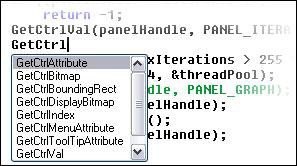
Figure 1: NI LabWindows™/CVI software automatically generates a list of matching items for partially completed functions.
While the LabVIEW graphical development environment has always required a computer mouse to place and position objects, Quick Drop now helps you quickly search for the correct VI with a few simple keystrokes before placing the item with the mouse.
How Quick Drop Works
To begin using Quick Drop, press CTRL + Space. The dialog that appears contains a list of all the VIs in the palettes.
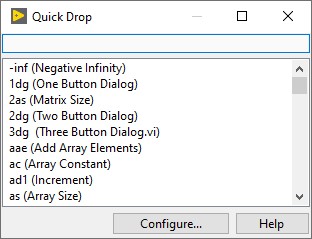
Figure 2: Press CTRL + Space to show the Quick Drop dialog.
You can filter the list by typing a phrase from the title of the VI you need. Quick Drop shortens the list as you type to display items with names containing your entered text.
In the Figure 3 example, the user has typed “t-r-a-n.” LabVIEW narrows down the list of VIs to those which contain the searched for text. The filtered list shows candidates that contain “t-r-a-n” somewhere in the name.
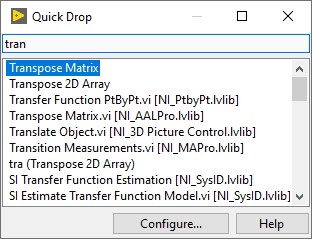
Figure 3: Quick Drop automatically completes queries with the first VI that begins with the same letters and shows all other possible matches in the list.
Quick Drop automatically places the highlighted item on the mouse cursor so you can type the name of a function and click once on the block diagram or front panel to place the object. If Quick Drop cannot predict your search, you can select the correct item from the list of matching results.
Tips and Tricks for Using Quick Drop
Keyboard Shortcuts Accelerate Programming
Several keyboard shortcuts already exist by default in Quick Drop that can speed up programming even more. Shortcuts available depend on the version of LabVIEW you are using; many shortcuts were added in LabVIEW 2009 including the following examples:
<Ctrl + D>
This shortcut automatically generates all controls and indicators for a selected VI, eliminating the time it would have taken to place these objects. Select the VI, then open Quick Drop (<ctrl + space>), and then press <ctrl + D>. Use <ctrl + shift + D> instead to automatically place all input constants for the selected VI.
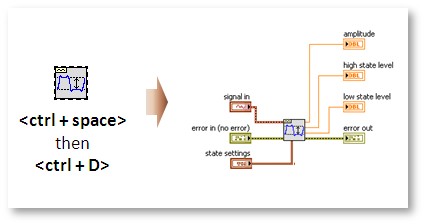
Figure 4: Select a VI, then press <ctrl + space> to open Quick Drop. Once the window appears press <ctrl + D> to automatically place and wire all controls and indicators for the selected VI.
<Ctrl + R>
Removing an unwanted VI in an application often requires you to rewire all tunneling wires like errors or references. Save time by pressing <ctrl + R> after selecting a VI and opening Quick Drop to remove a VI and connect input and output wires in place of that VI.
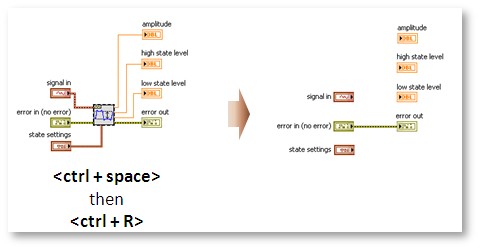
Figure 5: Select a VI, then press <ctrl + space> to open Quick Drop. Once the window appears press <ctrl + R> to delete the selected VI and connect corresponding input and output wires.
<Ctrl + T>
Some LabVIEW programmers prefer their labels on the left of input and right of outputs, and changing those positions can take time. Automate the process by pressing <ctrl + T> with Quick Drop open to move labels from the top of controls, indicators, and constants on a selected VI to the sides.
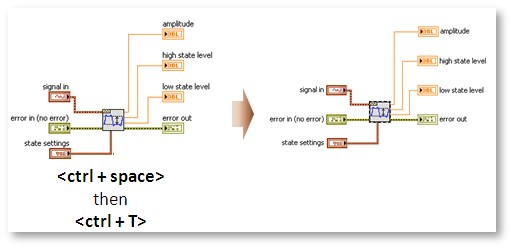
Figure 6: Select a VI, then press <ctrl + space> to open Quick Drop. Once the window appears press <ctrl + T> move object labels from above to the sides of objects.
Create Your Own Keyboard Shortcuts
In addition to the standard shortcuts, you can also configure your own Quick Drop shortcuts to help access the VIs you use frequently. Once Quick Drop is Open, use the Configure.. button to open the Quick Drop Configuration dialog box.
Note: Steps may vary slightly based on your LabVIEW version. Use the LabVIEW Help for your version of LabVIEW for specific steps to follow to configure Quick Drop shortcuts.
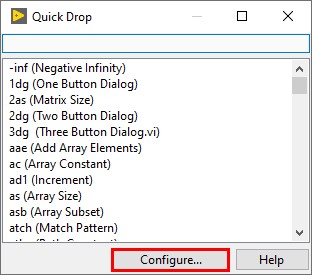
Figure 7: Click the “Shortcuts” button to define custom shortcuts for your most commonly used palette items.
Tip: You can make complicated VI names or VIs that share the first part of a name with other VIs more readily available by linking them to a two- or three-letter shortcut. It is recommended that you use letters that you can easily reach with your nondominant hand to keep your dominant hand on the mouse.
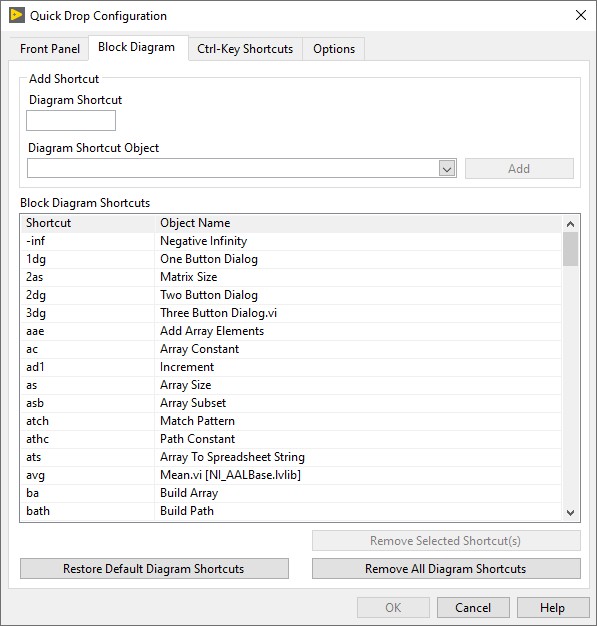
Figure 8: Try to define shortcuts using two or three letters.
When you create Quick Drop shortcuts, your LabVIEW.ini file is updated.
Summary
If you are a new developer, you still need palettes to find required functionality by drilling into the appropriate category. However, as you become more familiar with LabVIEW and function names, Quick Drop gives you the ability to place the desired VI without navigating palettes. This is valuable for improving productivity as the default palettes grow with installed modules and additional functionality.
The mark LabWindows is used under a license from Microsoft Corporation. Windows is a registered trademark of Microsoft Corporation in the United States and other countries.